Expressive Learning: Encouraging Students’ Multimodal Expression to Enhance Content Learning

A New Post by Jill Castek

I’ve been exploring the use of iPads to support literacy and science learning in middle school classrooms throughout the school year.  One of the most powerful ways I’ve found to help students make deep and lasting connections to content learning is to design meaningful classroom projects that engage students in working collaboratively to convey ideas  using digital tools that support multimodal expression.  As student design and create, they purposefully use key vocabulary and integrate examples that illustrate their thinking.  Student projects can be celebrated, showcased, and shared with an authentic audience made up of peers, teachers, and the wider community.  They’re also a great way to formatively assess student learning.

Students work collaboratively on digital projects to support content learning.

The Power of Student Collaboration

By working collaboratively, students are challenged to think through the important processes of choosing a focus, reflecting on what they know and how to represent it, and designing an action plan. As peers enact their plans, they critique and rework their representations iteratively until they’re satisfied their work has achieved the intended goal.

Working with iPads has provided students easy-to-use apps that support drawing and annotating images, inserting photographs, and creating voiceover capabilities. These features make it possible for students to express their understanding in multiple ways through multiple means, an aspect central to Universal Design for Learning (UDL). This post focuses on two examples of digital collaborative projects and the apps that supported their creation.

ShowMe for the iPad

ShowMe (see http://itunes.apple.com/us/app/showme-interactive-whiteboard/id445066279?mt=8) is an FREE iPad app that allows users to use images, drawing tools, and voiceover to communicate ideas.  Once a project is created, it can be shared on the ShowMe website http://www.showme.com/ or embedded into any digital forum (blog, wiki, website, etc.)  While this tool is often used by teachers in a receptive way, for example to deliver short lessons or tutorials to students,  I was interested in getting ShowMe into students’ hands so they could use its features creatively to express their understanding of concepts and ideas (thus enhancing and extending content they had learned).

Using ShowMe to Summarize Important Ideas from Reading

Linda Wilhelm’s 7th graders at Valley View Middle School in Pleasant Hill, CA were studying genetics in their Science class.  ShowMe was used to support an enhanced jigsaw activity where students created were expected to weave key ideas from their textbook and web-based reading into a short project that expressed their understanding of the content and provided examples. There were several subtopics; and pairs were assigned one of four themes to convey:  1) Some genes are dominant while others are recessive, 2) Mendelian laws apply to human beings, 3) All cells arise from pre-existing cells through the process of cell-division, 4) Sex cells have one set of chromosomes, body cells have two.

Students were shown a sample ShowMe project created by the teacher to give a sense of what was possible with ShowMe (which included importing images, drawing features, stop and start capabilities, and voiceover).  Then, a project rubric was distributed and discussed with students to convey expectations for the project.  Finally, students were provided time to plan and record their ShowMe projects.

Although storyboarding on paper was modeled and provided as an option, students preferred to draft their ideas directly into ShowMe.  As they drafted, they created multiple takes that were played back and evaluated by students iteratively.  Critiquing and revising with the ShowMe tool was immediate and satisfying for students and sparked careful re-reading and reflection on the texts provided.  It also sparked discussion on important aspects of visual literacy as students carefully thought through what images would best help illustrate their main points.  Throughout, collaboration was evident and a vital part of the digital content creation process.

ShowMe Student Examples

Click on the URLs provided and the ShowMe projects will open in a new window:

Using iMovie for the iPad to Construct, Explain, and Show Understanding

Leon Young’s 6th graders at Realm Charter School in Berkeley, CA were studying plate boundaries during a plate tectonics unit.  They designed and built their own scientific models to show the characteristics of plate boundaries in different locations around the world.   Students were then invited to create a short video using iMovie to showcase and explain their model to their classmates and school community.

Pairs of students worked together to think through how to convey science content through their video productions.  As they discussed shot selection, they showed a keen awareness of audience and purpose and found meaningful ways to explain scientific terms and concepts for those unfamiliar with the content.  As was the case with the ShowMe projects, students created multiple takes and revised iteratively as they reflected on word choice and overall flow of ideas.  The result was a strong and solid representation of what they learned that showcased both creativity and collaboration.

iMovie Student Example

Using Digital Tools to Support Multimodal Expression

When asked about the making these digital products students said the work was “fun, active, and creative.”  Not only did these projects support engagement with content, they also supported the development of vital 21st century literacies.  Students were able to showcase their learning in ways that involved multimodal expression which requires higher level thinking skills such as synthesis, evaluation, and critique (and are also central to the Common Core State Standards).

If you’re looking for a step-by-step guide for the use of ShowMe, iMovie, or other iPad apps that support literacy and content learning, click on the Step-by-step Guide to iPad apps and HandoutForIRAPreCon.  These presentation materials are from the IRA session that Jen Tilson and I delivered in Chicago, IL in May 2012.  Other speakers’ session materials, including Bernadette Dwyer’s handouts, can be accessed from the IRA TILE-Sig website at http://tilesig.wikispaces.com/Conference2

Add a comment to this post and share ways you’ve had students to create content and reflect on learning through the use of digital tools.  Sharing examples is a great way to get our collective juices flowing and sparks our creativity.  In the process, we’ll learn about a range of new tools and techniques for teaching and learning with technology. Enjoy!

Draw Me a Story; Write Me a Picture

By Thomas DeVere Wolsey

Pictures and words have gone together since the first word emerged from logograms in ancient Mesopotamia over 5000 years ago. One of the earliest illustrated books written specifically for children was Orbis Pictus (Comenius, 1658), and it took advantage of the power of pictures and words combined together. Today, graphic novels and comics are widely popular because, in part, they match words with images that, together, convey more than either might alone. Today, educators recognize the ability of properly chosen words matched with other visual information whenever they select a graphic organizer or teach students to create their own graphic organizers. In this Literacy Beat post, I explore how images can inspire young writers and how young writers might learn how their writing can inspire image-making, as well. Of course, in keeping with the theme of this blog, digital technologies will be central to our exploration.

Often, words accompany images (and vice versa) in such a way that one limits the other. For example, a caption under a photograph may limit the way the viewer of the photograph interprets the image. Charts, pictures, and graphs in an academic text may expand on some idea conveyed by words in the accompanying text. But, I wonder if the professor who taught a group of future teachers, me among them, was onto something when she noted that to really understand a thing, one had to draw it. Sometime later, a statistics professor encouraged a group of doctoral students that to understand statistics, one had to be able to draw the results. Images, these professors suggest, have the power to enlighten and inspire in ways words cannot. This may seem an odd thing for a person whose entire career is built around literacy education, so perhaps an example might help.

Write Me a Picture

As an entrée into poetry, I frequently asked middle school students to turn words into pictures. These concrete poems incorporate words in a physical arrangement that becomes an image. Michael P. Garofalo has created several that may serve as a model for your student writers, some of which make creative use of the online environment. Click the thumbnail to take a look at one.

Concrete Block

Michael P. Garofalo

Pencils and paper still work, too. Click the thumbnail to see a student-created example.

Mexican Mariachi

Mexican Mariachi by an 8th-grade Student

Putting words together with images is a first step in thinking about how images might improve writing. It is also a first step in teaching students about composing multimodal texts that make the best use of the combined media.

Draw Me a Story

Images that inspire writing  can be used insructionally in many ways.  Three of those explored here are student-created images, prompts writing with images, and combined text and images via the infographic.

Student-created images can inspire students to better understand the world through their writing. One science teacher I know asked students to go outside and draw an outline of the landscape and buildings around their homes. Then every hour for four hours in a row, they were to go outside and draw in the moon as it appeared to them relative to the skyline. The images were simple, mainly outlines, but the learning the drawing activity inspired led students to notice something about the very familiar moon that they had never noticed before. These drawing led to inquiry about the motion of the Earth and its moon, and the inquiry with the pictures led to writing that was sometimes filled with the wonder that much school-sponsored report writing often lacks. Others have also asked students to observe natural phenomena closely through drawing and writing field notes in the form of a journal: If you would like to read more about the moon project, click here.

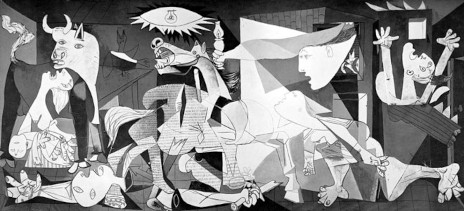
Prompts are the directions teachers give to students to direct them to action, particularly to write. At other times, images created by others prompt learning through writing. Two images juxtaposed might provoke students to the written word. The seemingly serene setting of a park in Guernica (May 2007) in the first image contrasts sharply with that painted by Pablo Picasso in the second image. The images, coupled with discussion, and online reading, might inspire more writing than any set of directions given to students.

Guernica

Guernica by Thomas DeVere Wolsey is licensed under a Creative Commons Attribution-NonCommercial-NoDerivs 3.0 Unported License.

Guernica by Picasso

Pablo Picasso, la exposición del Reina-Prado. Guernica is in the collection of Museo Reina Sofia, Madrid (low resolution image)

Multimodality as an approach to composition, Choo (2010) proposes, can motivate young writers and help them (and their teachers) escape from escape inauthentic writing tasks that attend to surface features, for example the ever-present five paragraph essay. For those interested in learning more about Picasso’s painting and how he came to portray such destruction, visit this PBS webpage.

Infographics present information in a visual way. In this example, words that can be used to describe coffee are displayed as a circular array. Colors link words as the eye travels the path around and through the wheel. A difficult writing task for any author is to represent in words concepts learned through the senses of taste and smell. Students might use and create flavor and odor wheels to assist them in thinking about words and choosing the best word for their writing.

Composing Multimodal Text

Photojournalists use words and images to tell their stories; Choo (2010) offers five questions that might assist students to think about how both are used successfully by considering the strengths of each modality.

  1. How do words function to “anchor” and give an interpretation of an image?
  2. How do words function to “relay” or contribute to the meaning of an image?
  3. Where will the image be placed in relation to the words and why?
  4. How much of the frame-space will the image occupy compared to the words?
  5. Is the focal point of the text on the image or on its words and why? (p. 172)

Using these questions as guides, students attend to the features of the images and words they choose and the multimodal texts that, together, they create. The Literacy Beat bloggers are interested in your multimodal projects and how images help your students write and writing helps them learn from images. Please share your ideas and successes by posting a comment, below.

Reference

Choo, S. S. (2010). Writing through visual acts of reading: Incorporating visual aesthetics in integrated writing and reading tasks. High School Journal, 93(4), 166-176.

Children’s Literature Cited

Comenius, J. A. (1658). Orbis Pictus.

More Resources

Search Engines and Multimodal Representations in this blog by Bernadette Dwyer

CAST Image Collector

Search engines and multimodal representations

I was recently working with my third year, teacher candidate, students exploring the skills, strategies and dispositions necessary to successfully conduct Internet inquiry within the information-seeking cycle. The information seeking cycle is comprised of (a) planning inquiry questions and forming goals for internet inquiry; (b) generating and revising search terms; (c) investigating search results with a critical eye; (d) locating and transforming information; (e) critically evaluating information; and synthesising and communicating information to others. The students undertook an Internet information challenge, What caused the downfall of the Mayan civilisation?, to develop metacognitive awareness of their own skills, strategies and dispositions when conducting Internet inquiry. What I observed was that some students began this information quest by exploring videos and images relating to the Mayan civilisation. Helen explained the strategy to me, “I usually search for information by looking at videos and images to get the main concepts related to a topic. Then I will look up some articles when I have this background information”. Does this strategy represent a shift from privileging text as the primary source of information to favouring more multimodal representations of information? In this blog post I will explore some search engines which provide multiple representations of information.

Googling’ has entered the lexicon to become synonymous with searching for information online. The left hand panel on the Google interface, as shown in the screen shot below, provides a number of interesting representational choices such as, images, video, blogs, discussion fora, news features and time ranges. However, you can also customise your search results according to reading levels at basic, intermediate or advanced reading levels. This is a positive affordance for struggling readers. The Twurdy search engine (http://www.twurdy.com/ ) will also sort search results according to readability levels. You can also, of course, customise the search results by using the customised Google Search Engine Tools (http://www.google.com/educators/p_cse.html ). See Jill’s wonderful post on Customised Google search engine on Literacy Beat, March 2011

screen shot of Googel left hand panel

Screen shot of the left hand panel on Google Search engine

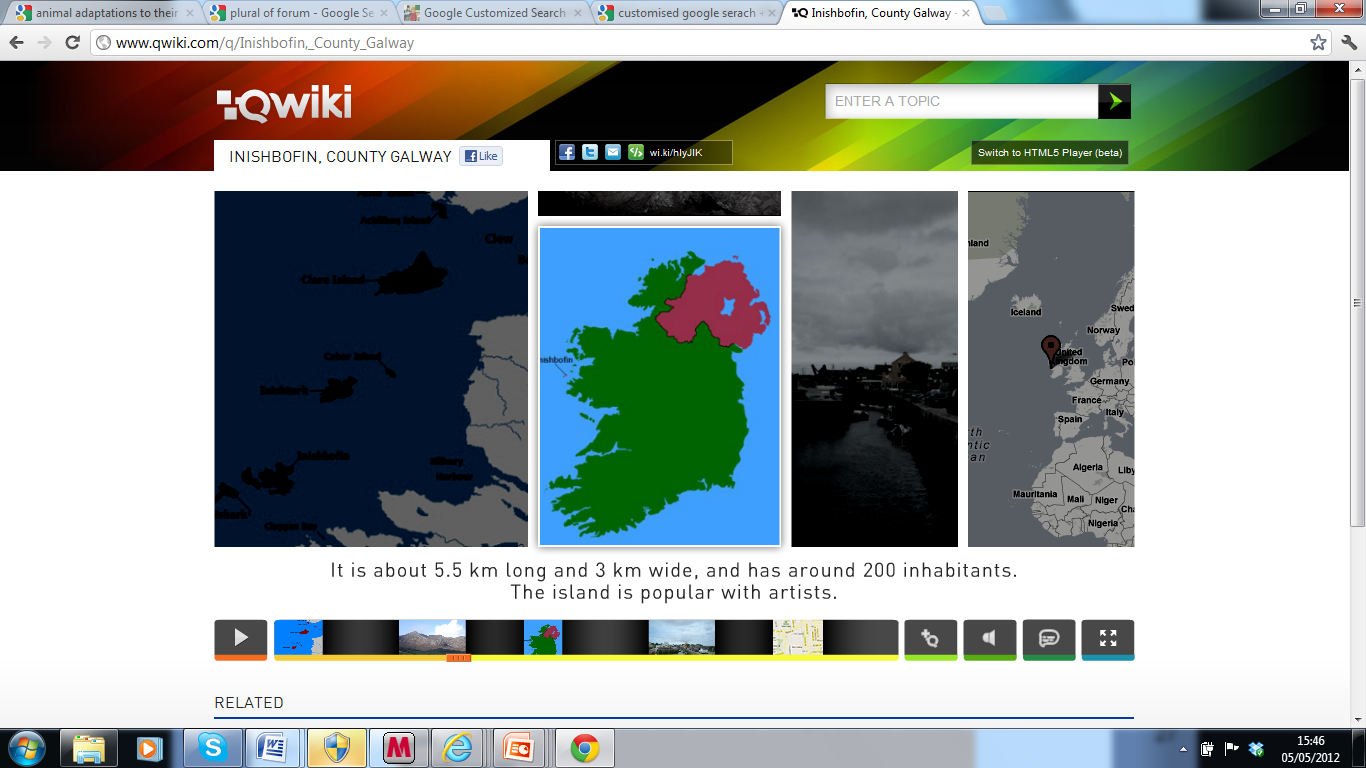
Other search engines privilege a more multimodal, multi-representational approach to presenting information. The Qwiki search engine (http://www.qwiki.com ) combines images, infographics, video and voice to enhance interactivity. Some of the pronunciations, especially for Irish place names are hilarious and entertain my students greatly! Qwiki is also available as an app for IPad, IPhone and Android devices. Qwiki Creator has just been released by the Qwiki team in alpha format and is currently available by invitation only. Qwiki Creator allows the user to create their own Qwiki representation with voice, text, images and video. I can see many possibilities for using Qwiki Creator with students in our classrooms. I think it’s certainly one to watch out for. A screen shot from the Qwiki interface is shown below.

Screen shot of Qwiki related to Inishbofin, Galway, Ireland

I have also recently begun to explore the Instagrok search engine. (http://www.instagrok.com/ )
Instagrok provides both a visual representation and a journal format. Watch the video for an overview.

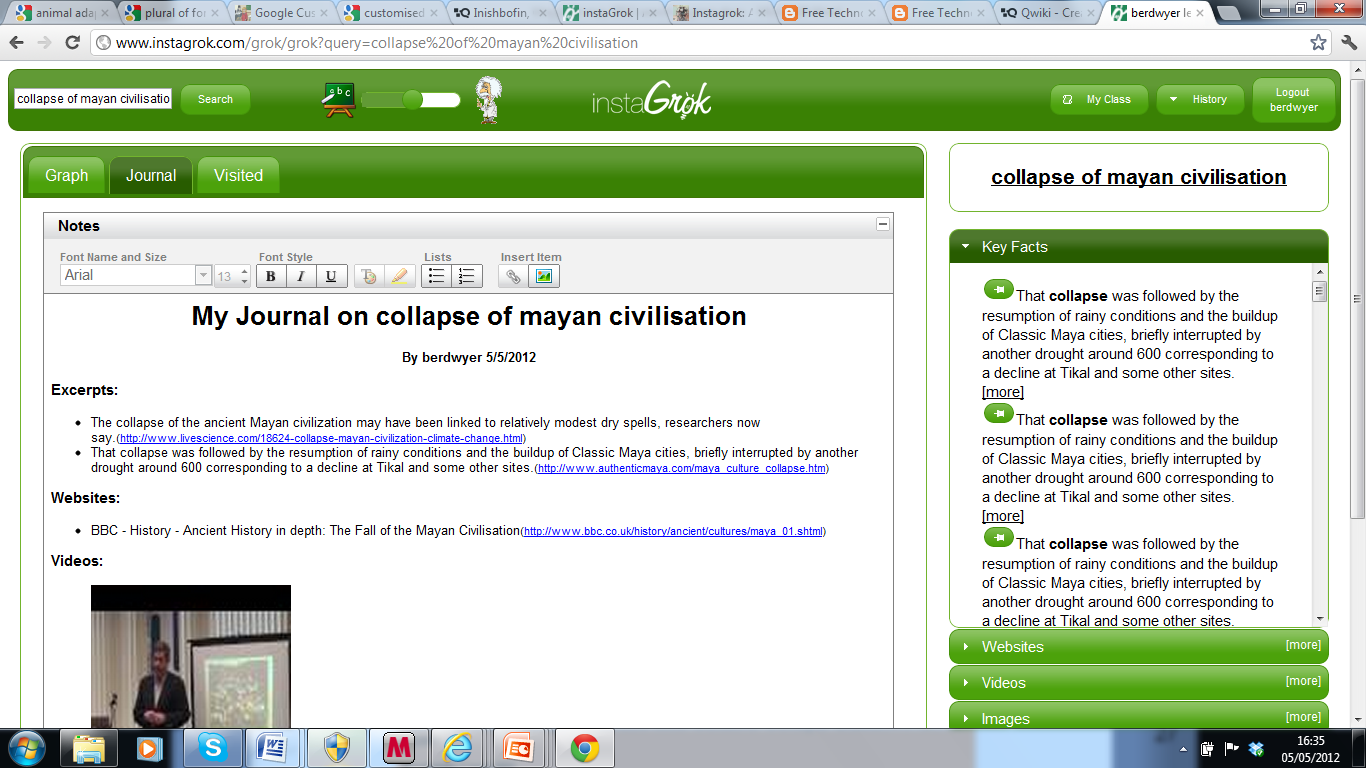
To grok, the developers tell us is to ‘understand thoroughly and intuitively’. Instagrok presents a visual graph of the key concepts related to a topic. You can click on any of the key concepts to investigate that concept more thoroughly. In addition, on the right hand side of the screen, you can view key facts related to the topic¸ web sites, videos, images, and quiz topic questions related to the topic. You can pin any of these representations on to the visual graph. See my screen shot related to a grok I conducted related to the collapse of the Mayan civilisation. There is also a slide bar at the top of the screen to adjust the level of difficulty of the information presented. What really excites me about Instagrok is that you can also create a journal, which is automatically generated, as you annotate the visual graph. See the screen shot of the journal below. As Instagrok allows the teacher to create student accounts you can view the work of students in these journals.

Screen shot of a grok related to the collapse of the Mayan civilisation

Screen shot of the  journal created by Instagrok realted to the collapse of the Mayan civilisation

So have fun exploring these search engines. Have you noticed any changes in the ways you are searching for information online? Do you privilege text over other formats such as, video, voice or images? What about your students? Do let us know by replying to this blog.

Personal Learning Environments: Making Sense and Keeping it All Under Control

PERSONAL LEARNING ENVIRONMENTS: MAKING SENSE AND KEEPING IT ALL UNDER CONTROL

I’d like to thank our guest poster, Thomas DeVere Wolsey, for a great blog on Personal Learning Environments! Dana

Guest post by Thomas DeVere Wolsey

Meet Dionisio

What? Another digital technology I need to learn? What is a personal learning environment, anyway? To answer that, I want you to meet Dionisio.  He is one very interesting 10th-grade student, much like those you know in 10th grade, 5th grade, and many other grade levels.  There are sides to Dionisio that are not readily apparent at school most of the time.  He plays guitar and records music using a Korg synthesizer app for his iPhone® and iPad® which he then shares with others at SoundCloud. SoundCloud is his favorite sharing site for music because he can sell digital recordings of his work there, and it is always rewarding when someone buys his songs.  Sometimes he posts his work to his YouTube channel, as well.   When he posts work on SoundCloud or YouTube, he often Tweets the URL to his followers and his Facebook friends see the new link, too.

Dionisio really likes music and sharing his creations with friends, but what most people don’t know about him is his interest in the United States Civil War. His interest in the lives of soldiers far exceeds anything his state social studies standards requires.  He subscribes to many Civil War blogs using an RSS feed to keep him updated on new posts.  In his social bookmarking account on Delicious, he has bookmarked almost every website for important Civil War battlefields in order to make them easily accessible.

In addition to his interests that sometimes match school curriculum and sometimes do not, he also maintains a Diigo page and several of his teachers use Edmodo.  A few of his friends use EverNote to keep track of readings assigned by teachers, collaborate with Dionisio on class projects, and catalog information they found on their own. Some of his school presentations appear on Prezi, and some he posted on YouTube.  Many of his teachers ask him to submit work on the school’s course management system (such as Moodle or eCollege).  PowerPoint® projects he created with others in his classes are often uploaded to Box.net as they collaborate over the Internet to be ready for class.  Dionisio kept most of the tools and websites bookmarked on his laptop, and then he met a teacher who changed his thinking.

View the YouTube video on the 21st Century student to understand a little more about Dionisio and students like him.  http://www.youtube.com/watch?v=XwM4ieFOotA&feature=youtu.be

Dionisio’s Personal Learning Environment

You might wonder how Dionisio keeps track of all those online sources. At first, it wasn’t easy; Dionisio found it all a bit overwhelming.  However, one of Dionisio’s teachers recognized that literacy in the 21st century involved more than just reading paper pages and answering questions.  Much more is involved in new literacies (Leu, Kinzer, Coiro & Cammack, 2004). Organizing, synthesizing and constructing meaning from online and traditional resources are critical cognitive skills made even more important as students navigate the digital environments they choose and in which they are asked to participate.  Dionisio’s teacher suggested to him and to his classmates that one way to make sense of all the information they create and that they gather is through the online tool, Symbaloo.  With Symbaloo, Dionisio created a personal learning network with a matrix that included the blogs he followed, the websites he found useful, the classroom management systems his teachers used, and many social and collaborative networking environments.

Because Dionisio realized that some of his learning was associated with specific classes at school, some was his own learning that overlapped with school sometimes, and some was related to personal interests that rarely overlapped with school, he set up his personal learning environment to keep some elements private, some shared with his network outside of school, and some shared with his teachers and classmates.  These networks often overlapped, but Dionisio decided which elements to share and with whom.

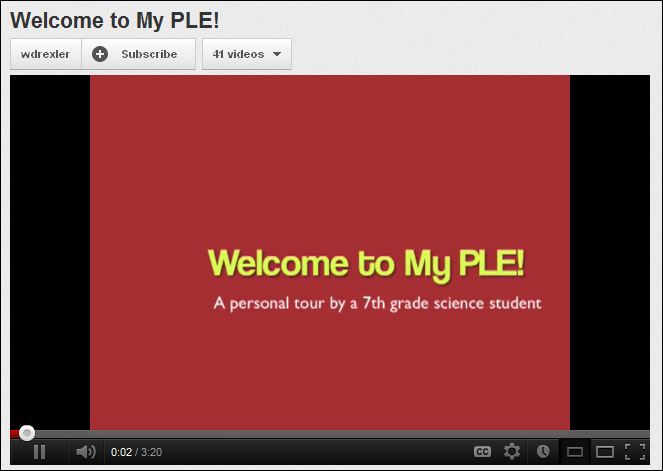
In the YouTube video, notice how a 7th-grade student created a personal learning environment in Symbaloo  http://youtu.be/YEls3tq5wIY

Welcome to my PLE

How do Students Organize the Personal Learning Environment?

Wouldn’t it be nice to just tell students how their personal learning environments (PLE) should be organized? Include elements A, B, and C, and you’re done! But that would not be very personal, would it? Personal learning environments are organized in a way that makes sense to the person doing the organizing.  Michelle Martin (2007), an adult blogger, organized hers according to the information she gathered, the information she processed, and the actions she takes based on her learning.  Two things are worth noting in her approach: 1. She changed the tools she used to organize her PLE after awhile, and 2. She included traditional paper-based text in her PLE.

The EdTechPost wiki includes many diagrams that illustrate how personal learning environments might be constructed. On the wiki, the diagrams are organized toward orientation: tools, use/action/ people, and hybrid/action/other.  Every personal learning environment is different because each reflects the way the person who created the environment perceives and organizes their learning and the worlds it represents.  Dionisio quickly realized that Symbaloo was a great tool, but he needed multiple entry points for his PLE representing the way he organized his own learning.  He created an About.me account to provide a more public access point for his music and interests in the Civil War.  The About.me page did include links to his Symbaloo and other pages, but some were password protected, and not all his school pages were linked to his About.me page.

What are the Elements of a Personal Learning Environment?
The Learning Technologies Centre at the University of Manitoba includes several elements of a personal learning environment. These include production tools, collaboration tools, aggregation tools, and so on (for the full list, click the link).  EDUCAUSE (2009) points out that a key attribute of the personal learning network is that it is learner centered.  Attwell (2006, pdf file) further explores the learner-centered feature of the personal learning environment. He suggests that they are characteristics of life-long learners and that they are informal in nature.  Another key element is the aspect of community (e.g., Grisham & Wolsey, 2006), the idea that much of our creative and intellectual work is part of a larger group, as well.

Why do Personal Learning Environments Matter?

A characteristic of humans is that they try to make sense of the contexts of their lives. The tools they use and the purposes they establish for learning may be the defining features of learning in the coming decades.  How will you encourage your students to create and maintain personal learning environments the promote mastery of appropriate standards and foster lifelong learning as well? Dionisio relied on his teacher to help him learn to organize and make sense of the many online tools he used. Like him, many K-12 students and adults create environments that serve their own purposes that include formal and informal contexts.

At the beginning of the post, we asked what a personal learning environment is.  Simply, it is the approach that users take to individual aggregate content, organize it, and lend context to it. Content may be created by the owner of the PLE or gathered from the Internet and other sources. PLEs are informal mashups, elements of which may be shared with others in the user’s network and learning communities. Finally, educators sometimes provide a basic framework or tool that students might use to start building their own PLEs.

More to Learn:

To continue your own exploration of personal learning environments, visit http://delicious.com/stacks/view/Qeck9Y  Also, read more about the related concepts of personal learning networks (which overlap with personal learning environments), social bookmarking, and content curation.

References

Attwell, G. (2006). Personal learning environments—The future of elearning? eLearning Papers. Retrieved from http://www.elearningeuropa.info/files/media/media11561.pdf

EDUCAUSE. (2009). Seven things you should know about personal learning environments. Retrieved from http://net.educause.edu/ir/library/pdf/ELI7049.pdf

Grisham, D. L. & Wolsey, T.D. (2006). Recentering the middle school classroom as a vibrant learning community: Students, literacy, and technology intersect. Journal of Adult and Adolescent Literacy, 49(8), 648-660. DOI: 10.1598/JAAL.49.8.2

Leu, D.J., Jr., Kinzer, C.K., Coiro, J., & Cammack, D.W. (2004). Toward a theory of new literacies emerging from the Internet and other information and communication technologies. In R.B. Ruddell, & N. Unrau (Eds.), Theoretical models and processes of reading (5th ed., pp. 1570-1613). Newark, DE: International Reading Association. Available: http://www.readingonline.org/newliteracies/lit_index.asp?HREF=leu/

Martin, M. (2007, April 11). My personal learning envirornment [blog post]. The bamboo project. Retrieved from http://michelemartin.typepad.com/thebambooprojectblog/2007/04/my_personal_lea.html

When we were young: A book memories project

Remembering when we were young:  A book memories project

a post from Bridget Dalton

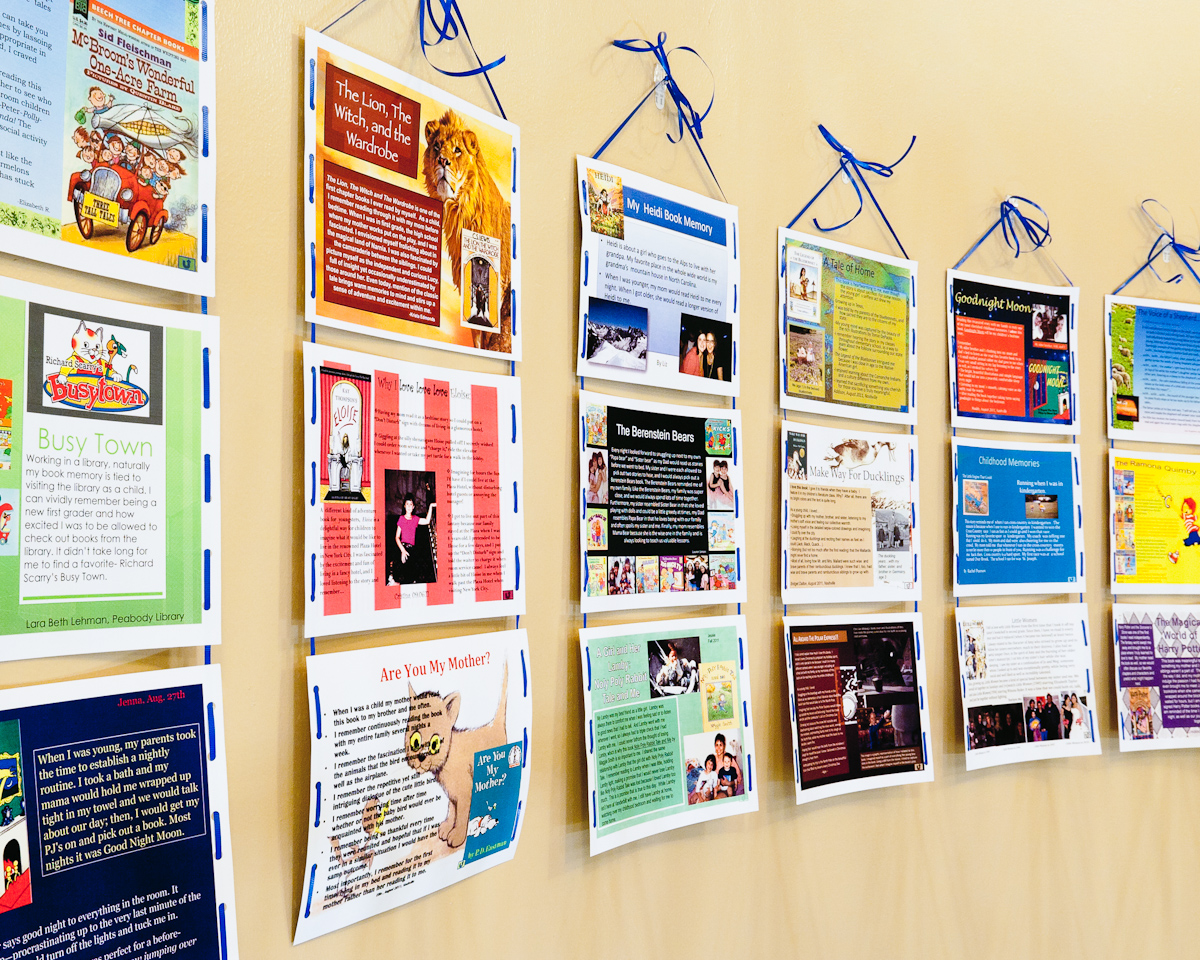
A student views the Book Memory Quilt Display at Peabody Library, Vanderbilt University.

I always begin my course on children’s literature with sharing of book memories. Students and I travel back in time to the child we were at age three, seven, perhaps ten or eleven, and recall the books that held such special meaning for us at that time in our childhood. Why do we remember these books so powerfully? Often, it is who we read the book with that is most important, with many remembering the sights, sounds, and physical presence of reading with a parent. Sometimes it is the book’s role in our development of a reading identity. One student describes the first book she was able to read on her own; another describes how her love of “Eloise” led to a family trip to the Plaza Hotel in New York City where she was able to order room service, just like her favorite heroine!; a third describes a kitchen scene where he listened to his father read aloud from the Bible and respond to his questions.  Sharing book memories is always one of my favorite classes. We get to know one another better. It’s fun, and sometimes a bit emotional, as we remember “when we were young”.

Trying something different – a multimodal book memory

This year, I decided to try something different. I wanted students to share their stories with a larger audience, and I wanted to involve them in composing in a digital format. After we talked through our book memories, I introduced our Book Memory Project by projecting a PowerPoint slide illustrating my memory of Robert McCluskey’s classic tale, “Make Way for Ducklings”. I described why this book is so special to me and then talked about my visual design – my choice of an illustration from the book to serve as the background, use of sepia brown font and inclusion of a photo of my father, brother, sister, and me during my own duckling years. I explained how I made design choices in hopes that my writing and visuals would work together to effectively communicate my book memory.

I recall reading “Make Way for Ducklings” with family.

Getting started with a hypertext anthology of book memories

Students were intrigued and curious about the possibilities, so the next step was to create a hypertext anthology using PowerPoint.  I provided a rubric to guide them, with the most important guideline being that they should have fun with this experience and allow themselves to be creative in both their writing and visual design.  In the sections that follow, I share some examples of students’ book memories (they did a wonderful job!), outline the project steps and provide a rubric for you to adapt.

In thinking about how you might want to adapt this idea for your own students, consider first whether a book memory as I’ve conceptualized it for adults makes sense for younger children.  They might not be interested in recalling a book from younger days – unless they are used as book advertisements for children in a younger grade?  Another option would be to use this format as a book response activity for a favorite book they have read recently (or perhaps riff on this to capture their experience with their ‘worst’ read book of the year!).  A third option would be to have students interview a parent or grandparent about their favorite book memory.  For some, it may be a story told orally that they remember best, and that would work equally well.

Project steps

Creating a hypertext anthology of book memories using Power Point (note you can also do this as a web page or with any hypertext tool):

  1. Have each student create one slide illustrating their book memory.
  2. Create a master PowerPoint and insert each student’s slide (remember to check ‘keep source formatting’ when you insert so that you don’t lose the students’ design). Let students know that they can use a first name only, a pseudonym, or a full name, depending on privacy concerns if it is to be shared publicly.
  3. Create a title slide with the title, date, and authors (see example).

4. Create a table of contents slide that will be hyperlinked to each book memory.

In the example below, I used the table feature to enter the student’s name and book title and then hyperlinked each name to the student’s slide with their book memory.

The table of contents is hyperlinked to each book memory slide.

5. Hyperlink each book memory slide back to the table of contents slide.

For your first book memory link, create a graphic to serve as the hyperlink back to the table of contents. Then, copy and paste that on each of the slides (this way you avoid creating a new link to return to the table of contents for each book memory slide).

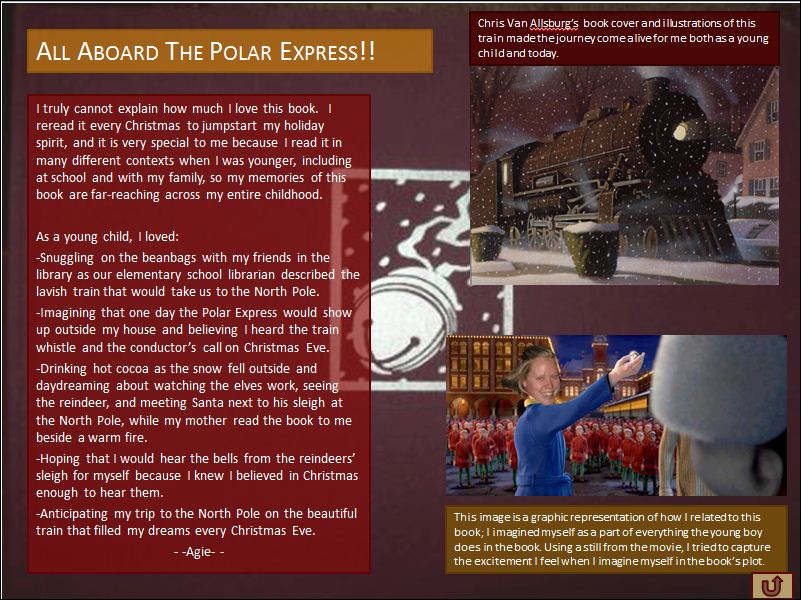
This student recalls her memory of The Polar Express. Notice how she has inserted a photo of her head onto the child’s body to show how she imagined riding the train. the arrow in the bottom right corner is a hyperlink back to the table of contents.

6. Once you’re done, test each link from the table of contents to each slide and return.

7. Save your PowerPoint anthology (or hyperlinked web page).

8. Decide how you will share the PowerPoint.  You could put it on a computer in the classroom and the school library. You might also want to share it on your class webpage.

Assessing a book memory

I needed to asses students’ book memories to reflect their multimodal compositions.  I’ve pasted the rubric I developed below.  I tried to keep it general so that students would have flexibility in creating their designs (I intensely dislike rubrics that try to quantify multimodal composing such that more images are better than fewer images.  We all know the power of a single image when it suits the message and intended audience!).

Book Memory Rubric

A = Either writing or visual design are advanced, or both are advanced.

B = Either writing or visual design are proficient, or both are proficient.

C = Both areas are basic, or below basic (I know this will not be an option for any of you!).

This rubric is designed to assess writing and visual design quality of the book memory.

Option:  Book memory quilt display

The book memory quilt created by our class is hanging in the Peabody Library for all to enjoy! We printed out the slides in color on hard stock paper and laid them out on a large table so that we could balance the colors.  Next, we strung them together with ribbon to create several banners.   Then, we hung the banners together to create a quilt-like display for the wall.  Simply done, but quite effective!

Group banners to create a book memory quilt to hang on the wall.

A few more book memories

A student remembers her father’s gift of “Call it Courage” and how it helped her to be brave.

“Goodnight Moon” was a book fondly remembered by several students.

Enjoy your own book memories!

If you try this project out with your students (or some adaptation), please consider sharing your experience by posting a comment to this blog.  I look forward to reading more book memories.

Design Your Wild Self Avatar: Getting to know one another through mulitmodal composition

post by Bridget

Avatar design could be said to be a new literacy. When playing digital games and social networking, kids often select and customize avatars to represent themselves. They offer opportunities to experiment with different identities and take on roles within the specific context of the game or community. They also offer the opportunity to design with different media and think symbolically about how to represent ‘character’.

This past summer, I used an avatar design activity to launch a Digital Writers’ Workshop with urban middle school students who were participating in a summer school program. Collaborating with a group of doctoral students (Blaine Smith, Christian Ehret, Summer Wood, Tyler Hollett and Robin Jocius), we used the avatar design activity to help us all get to know one another and to introduce kids to the notion that they are multimodal designers and could communicate with different symbol systems (a key theme of the workshop).

Across a series of composing activities, we tried out a scaffolded approach to multimodal composition: Demonstrate, Create, and Share-reflect-respond, or DCSrr for short (Dalton, 2011). Below, I describe this process and share some examples of students’ work, along with their design reflections.

Getting started: Finding the “Build Your Wild Self” avatar design website

The first challenge was finding an avatar design tool online that was free, appropriate for young adolescents, and which ran on the lab computers without glitches. Blaine and I spent a few hours searching, finding some very cool sites that we had to reject, typically because they required registration with a commercial enterprise (something we wanted to avoid), the images of females were highly sexualized, or there were few multicultural options.

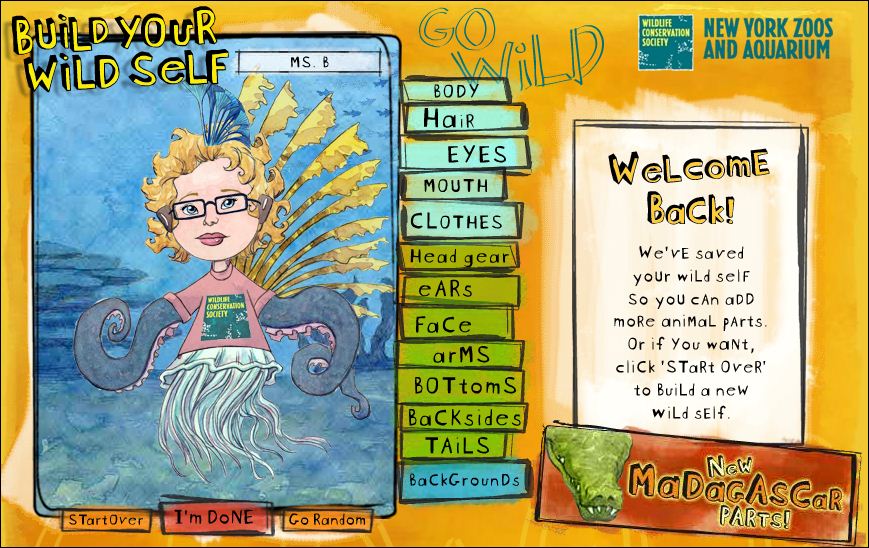
We hit pay dirt when we found the “Build Your Wild Self” website sponsored by the New York Zoos and Aguariam and the Wildlife Conservation Society (http://www.buildyourwildself.com/). Of course, the first thing I had to do was design my own avatar to explore the tool and think about how kids would use it. Here is the home page, which displays my avatar.

avatar home page

Here I am on the “Build Your Wild Self” avatar design website

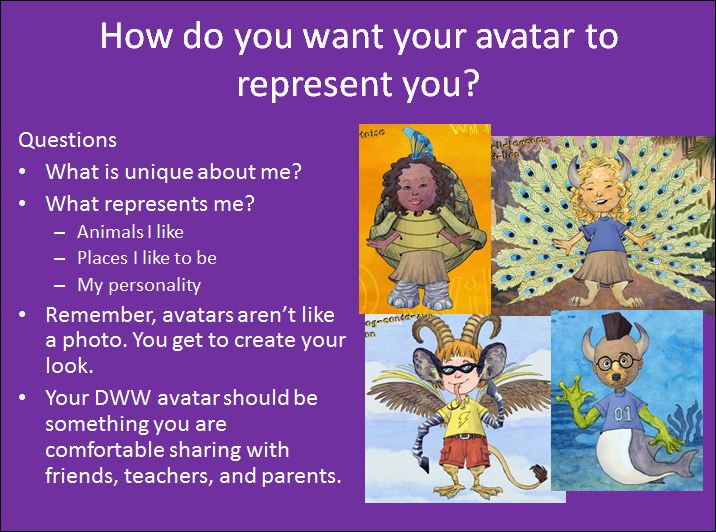
screen shot of PPT introducing avatar activity

screenshot of Blaine's avatar design

image of avatar design

Serina’s avatar:

Antennas: I picked the antennas because I can search out things and I also need glasses to see. Those are kind of my little glasses.

Rabbit ears: So I have the rabbit ears, if that’s what they are, so know that I can hear you

Wings: …because I thought they were cool, they looked all right and also I can fly,

I can do anything I want to do and see stuff and if you mess with me, I’ll stick you.

image of avatar design

Serina’s avatar: I can do anything I want to do

Parting shot: Fun? Yes! Multimodal composition? Yes!

Try designing your own ‘wild self’ and then try it out with your students. I would love to hear how it goes (post a comment, please!).

Developing student’s visual literacy through scaffolded image inquiry

A post from Bridget

We live in a visual world.  The screen of the computer, eReader, smart phone, and game consul is dominated by visuals that we must interpret in relation to their design, communication purpose, and interactive capabilities. What is changing, however, is the degree to which the visual is entering the academic domain.  While visual literacy has always held a place in the literacy curriculum, it is increasingly recognized as an essential literacy skill for the 21st century.   According to the Common Core standards and the IRA/NCTE reading/language arts standards, students must learn how to be savvy consumers AND creative, adept producers of visual messages.

In this post, I feature one of my favorite visual literacy resources, Image Detective, and share an example from Isabel Bauerlein demonstrating how the Image Detective scaffolded inquiry process can be extended in the classroom.  Read on! View on!

Image Detective, is a free online tool developed by Bill Tally and colleagues at the Center for Children and Technology, Education Development Center. http://cct2.edc.org/PMA/image_detective/

home screen of Image Detective

click image to enlarge

We’re used to teaching students the inquiry process in relation to their research projects and science investigations.  Why not teach them how to “inquire” about images?  Better yet, teach them visual inquiry within a subject area such as social studies so that they develop visual literacy skills while also learning to think like a historian with primary sources?  The Image Detective scaffolds the inquiry processes of asking questions, critically reading images, understanding context and background, synthesizing ideas and drawing conclusions, and comparing conclusions. The turn of the 19th century images reflect social studies themes such as immigration, women’s suffrage, and the American west.

This next screenshot shows how students collect and interpret visual clues in response to one of the default questions, “Is this poster in favor of women’s right ot vote or against it?”  Students may also type in their own question.

screenshot shows image clue hotspot and notes about clue

click image to enlarge

The third screenshot shows how students develop a conclusion based on the image clues that they have collected. Once they’ve submitted a conclusion, they can compare their response to others’ that have been posted.  Important note – the Image Detective does not save students’ work after the session is ended, so students will need to print out their work or cut and paste it into a Word doc.

screenshot showing prompted conclusion

click image to enlarge

What about the research base for this type of digital tool?  Tally and Goldenburg (2005) studied how 159 middle school and high school students and their teachers used Image Detective to explore one of the Picturing Modern America images.  They found that students were able to engage in historical thinking behaviors such as close observation, inferencing from evidence, corroboration, and question posing.  Students also reported that they enjoyed learning history by investigating images, rather than listening to lectures and reading textbooks.

To learn more about this study, read:  Tally, B. & Goldenberg, L. B. (2005).  Fostering historical thinking with digitized primary sources.  Journal of Research on Technology in Education, 38(1), 1-21.

Extending Image Detective in the classroom – An example from Isabel Bauerlein

Teachers often ask me if it is possible to use Image Detective with images other than the nine scaffolded images that are featured in the tool.  I think that would be a great feature, but it is currently not on option (are you listening, Bill Tally?!).

I usually respond that it would be great to introduce students to the visual inquiry process using the Image Detective tool and then extend it informally beyond the specific tool and images.  In one of my classes last semester I suggested that Power Point might serve well as a hypertext authoring environment for creating an Image Detective-like learning experience.    I speculated that teachers and students could both get involved in creating scaffolded image inquiries to share with others.  Isabel Bauerlein, a recent graduate of our masters’ degree program in reading, took up the challenge.  She designed an intriguing extension of Image Detective for her class project, using  Power Point to create a scaffolded inquiry experience with photos that are now freely available from Life magazine.  With her permission, I am sharing some of her work. I find it quite inspiring!

Here is Isabel’s description of her project:

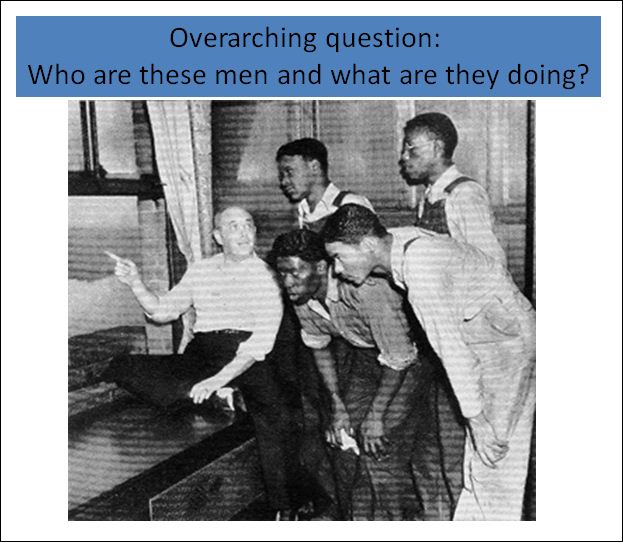
Isabel Bauerlein Analyzing Images  This three lesson series for 9th grade English is designed as an introduction to the novel To Kill a Mockingbird. Students practice analyzing images on the Image Detective website, transfer those skills to analyzing a historic image from the 1930s, learn about the Scottsboro Trial, and then analyze a set of LIFE magazine photos for ideological stance.

An excerpt from Lesson 2 about the Scottsboro Trial is shown in the next 3 slides.  Note how Isabel used the same inquiry structure as the Image Detective, offering support through hyperlinked slides.

click image to enlarge

Isabel goes on with additional slides that pose questions and offer clues that encourage students to apply a more critical perspective to this historical image.  For example, in the following slide, Isabel asks students to think about why the Life reporter (and magazine editor) would use the word “goggling” in this caption to describe how these young black men are viewing the scene outside the window.

click image to enlarge

Are you feeling inspired to try out Image Detective and/or create your own scaffolded images ?!  While this tool and Isabel’s example are designed for students in middle to high school grades, I can imagine how it could be extended for work with younger students.

Please share your experiences teaching visual literacy skills and resources by posting a comment to this blog.  Read! View! Interact!

Tweets on Cyberbullying

By Dana Grisham

Ms. Vanessa Cristobal is a high school English teacher at the California School for the Deaf. Ms. Cristobal is an innovative teacher who enjoys using technology to teach her profoundly Deaf and hard-of-hearing students using Web 2.0 Resources. Deaf students are avid users of technology, and indeed technologies such as closed captioning, Instant Messaging, and other assistive technologies are a boon to this student population.

In her honors class this year, Ms. Cristobal, did a unit on cyberbullying that taught her students some of the most important lessons about the uses—and possible misuses—of technology.

Our blog, Literacy Beat, focuses on vocabulary learning and Web 2.0 tools and the issue of cyberbullying is an important topic–and one that teachers must consider. There are significant vocabulary terms that must be learned by students and Ms. Cristobal is very aware of that.

She begins her unit with a PowerPoint on how to do Twitter (Tweeting). Then students begin to read resources on the topic and to discuss these in class. Finally, they “Tweet” about the problem using some of the new language they have learned and combining that with artistic composition language. Wolsey and Grisham (in press) have compared “tweeting” with Haiku. Both have space constraints, which make them brief, but when done well, they have quite an impact on the reader.

See this example of a Haiku (all tweets and haikus reproduced here with permission).

A yellow pencil

Left beneath a schoolhouse tree

Autumn leaves gather.

T.D. Wolsey (67 characters)

Compare with a “tweet.”

140 characters is the space limitation for a tweet and it is quite short, like Haiku, so thought must reflect the essence of communication.

D.L. Grisham (139 characters)

Ms. Cristobal used a number of resources on her unit on cyberbullying. Note below there are ten useful websites compiled on this topic. The culminating activity of Ms. Cristobal’s unit was the tweeting the students did in response to what they had learned. These were posted to Twitter, but kept private. All identifying information has been eliminated from these student examples.

Five Student Examples (edited a little for grammar):

It really hurts to be hated and makes me so angry, but I can’t respond that way. Instead, I must report. I would never do this to another! (138)

A sad boy cringes from his former friends in such pain that he might suicide. It is betrayal, but don’t despair. Tell someone and escape. (137)

You must not believe the lies and the hate, but trust this will pass. Report the abuse and you will then be free. Be strong. Don’t despair. (139)

Cyberbullying is a crime. Don’t commit it. If you are a victim, report it. It is not your fault. Sometimes so called friends make mistakes. (139)

In the end, you will survive, but it can make you angry and sad. Cyberbullying is a crime, so don’t let yourself believe the bad messages. (138)

Ms. Cristobal’s honor students did an excellent job with the form and the language and cyberbullying is a topic that all students, particularly middle and high school students need to review, much like safely crossing the street for younger students.

Ten Resources on Cyberbullying

Wikipedia definitions: http://en.wikipedia.org/wiki/Cyber-bullying  Includes definitions, original research, other publications on cyber-bullying.

Cyberbullying Resource Center: http://www.cyberbullying.us/aboutus.php Two researchers, Justin Patchin and Sameer Hinduja, authors of Bullying Beyond the Schoolyard (2009), sponsor a website dedicated to “providing up-to-date information about the nature, extent, causes, and consequences of cyberbullying among adolescents.”

National Crime Prevention Panel: http://www.ncpc.org/cyberbullying Provides a Q & A and other resources, including reporting options.

KidsHealth: http://kidshealth.org/parent/positive/talk/cyberbullying.html  In the parents section, text-to-speech provides audio reading of information about cyberbullying in both English and Spanish.

BrainPop: http://www.brainpop.com/health/personalhealth/cyberbullying/  Provides a free kid-centered “cartoon” on cyberbullying. Other free programs include Internet safety, instructions for email and IMing, and cyberetiquette.

WiredKids, Inc. http://www.stopcyberbullying.org/  What it is, how to recognize cyberbullying, what action to take and how to join a campaign.

Cyberbullying Report: http://cyberbullyingreport.com/  Contains a process for reporting cyberbullies.

NetSmartz (NS) Teens: http://www.nsteens.org/Videos/Cyberbullying Video that explores cyberbullying through student interviews and cartoon.

YouTube: http://www.youtube.com/watch?v=fNumIY9D7uY  The experiences of a teen boy who was cyberbullied and grew desperate, but how the cyberbulling was stopped. (There are a number of other films on YouTube on this topic that I have not reviewed.)

Stop Bullying: http://www.stopbullying.gov/about_us/index.htmlStopBullying.gov provides information from various government agencies on how kids, teens, young adults, parents, educators and others in the community can prevent or stop bullying.

Images for Cyberbullying:

Google Images for cyberbullying: http://www.google.com/search?q=cyberbullying&hl=en&biw=1881&bih=949&prmd=ivnsb&tbm=isch&tbo=u&source=univ&sa=X&ei=5cglTrv8EY6WsgP8yYnpCA&sqi=2&ved=0CEkQsAQ

May be used for reports or as teacher resources, although some are copyrighted.

References:

Wolsey, T.D. and Grisham, D.L. (in press). Teaching writing with technology. New York: Guilford.

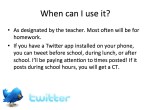
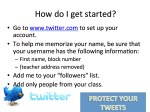
Sample PowerPoint Slides for Tweeting in Ms. Cristobal’s class (with thanks!)

Exploring digital tools for literacy

A post from Bernadette

My teacher candidate students and masters students have been weaving in some digital tools for literacy into the before, during and after reading stages of a guided reading lesson. They have explored the affordances and possibilities presented by these digital tools for literacy. The following are some of the most popular digital tools for literacy that the students have explored this past academic year.

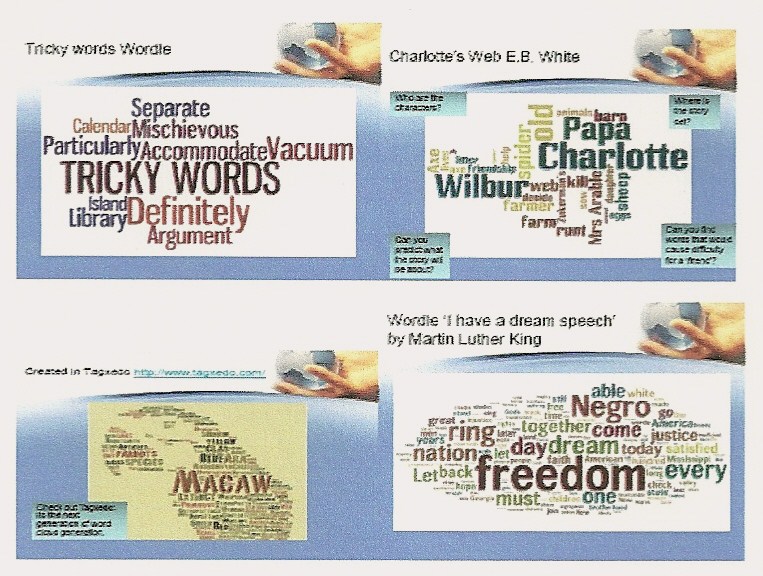
Wordle (www.wordle.com) or Tagxedo (www.tagxedo.com ) to create word clouds. For example, drawing attention to difficult or tricky vocabulary in a text; creating synonyms and antonyms for vocabulary; making predictions using an anticipation guide for Charlotte’s Web (E. B. White) or summarising text as in I have a dream speech by Martin Luther King.

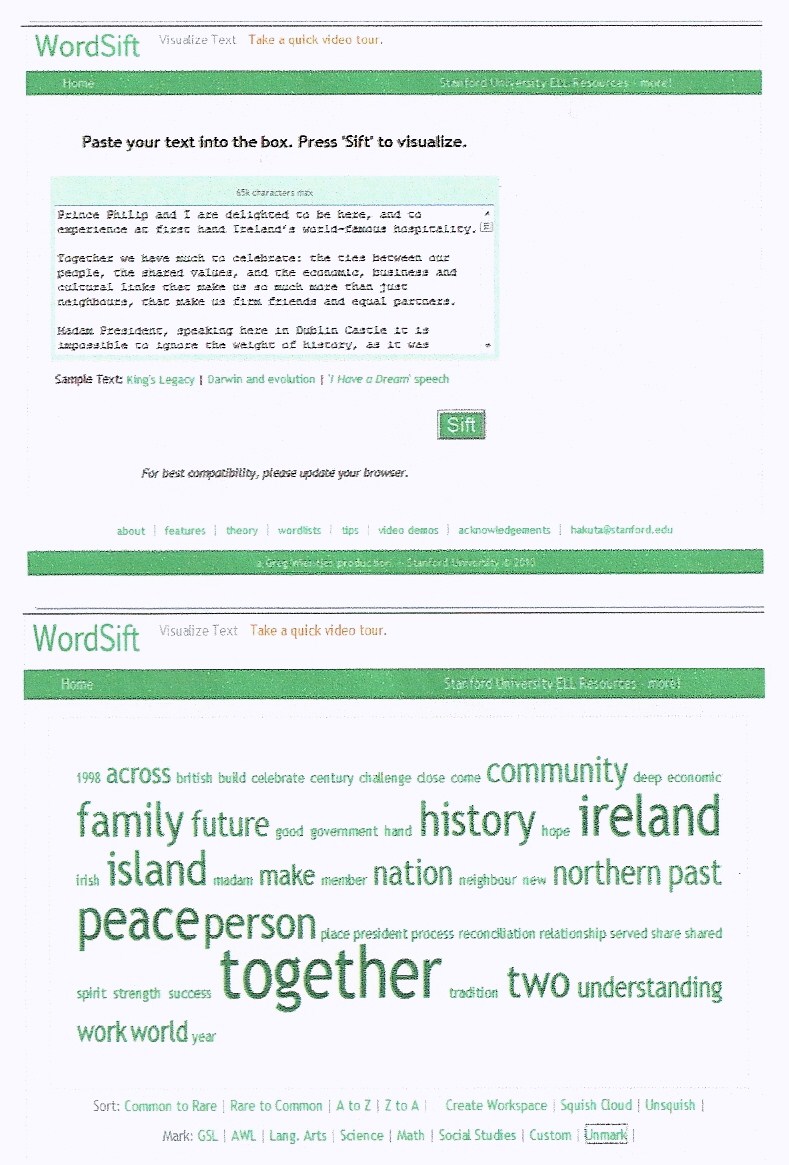
Word sift (www.wordsift.com) as a teaching tool to sift vocabulary in a text. Word Sift captures an inputted text and displays (a) the most frequent words in text in a variety of formats, e.g. in alphabetical order or from frequent to rare; (b) presents Google images and a visual thesaurus of highlighted words; and (c) provides examples of selected vocabulary within the context of the sentences from the original text. Pretty powerful stuff!

Text of speech by Queen Elizabeth II delivered in Dublin Castle,Ireland  on May 18th 2011

For more great evocabulary ideas see Dalton and Grisham (2011)


Electronic reading formats of texts The students have explored the affordances presented by electronic reading formats for deepening response to literature. For example, they have adapted the work of Larson (2009) to create an electronic reading workshop. Elementary school children were asked to create ebookmarks or generate ejournals to capture fleeting thoughts, construct predictions, make connections or clarify difficult vocabulary as they read.
Students have also created threaded discussions using wordpress (www.wordpress.com) to create class blogs in response to electronic ebooks. Here children can respond to teacher created prompts. In one student’s classroom the children developed their own prompts and responded to each other in an asynchronous discussion format. The class blog helped to develop a community of readers within the classroom. Analysis of the blog discussions suggested that children scaffolded, contested, affirmed or extended each other’s responses.

See Lisa Zawilinski’s (2009) article in The Reading Teacher for an extended discussion of blogging in the classroom.

Finally, my students have used Glogster (http://edu.glogster.com) to create interactive multimedia format posters. These glogs helped children to elaborate their response to ebook formats. For example, in one study the children created video dramas of weather forecasts predicting a storm as the characters in The Wildflower Girl (Mc Kenna, 1994) crossed the Atlantic; or developed meanwhile episodes where the children became involved in authorship to extend the original story crafted by the author.

Tús maith,leath na hoibre (a good start is half the work)! We have made small steps this past academic year. Next year we will extend and grow the affordances presented by digital tools for literacy in the classroom. My fellow bloggers at Literacy Beat have provided me with many inspiring ideas………..
References
Dalton, B., & Grisham, D. (2011). eVoc Strategies: 10 Ways to Use Technology to Build Vocabulary. The Reading Teacher, 64(5), 306-317.
Larson, L. C. (2009). Reader response meets new literacies: empowering readers in online communities. The Reading Teacher, 62(8) 638-648.
Zawilinski, L (2009).HOT blogging: A framework for blogging to promote higher order thinking. The Reading Teacher, 62(8), 650-661.

Digital Book Trailers: A Welcome Alternative to the Book Report

A post from Bridget.

I was an avid reader beginning in third grade, when my parents finally allowed me to ride my bike to the local library on my own (those were safer times). Once a week, I would collect as many books as I could fit into my bike basket and pedal back home with my treasures.  My friends didn’t know I was a voracious reader (I didn’t want to appear nerdy and enjoyed my private reading world).   Perhaps more surprising is the fact that my teachers were unaware of my love of reading. I deliberately kept them in the dark for fear that I would be asked to write the “dreaded book report”, a genre that I found incredibly boring. Even worse, I might be asked to stand up in the front of the class and give an oral book report.

Happily, in today’s media rich world there are alternatives to the traditional book report.  Digital book trailers are becoming increasingly popular with kids, teachers, authors, and publishers alike.  What is a digital book trailer?  While definitions vary, a popular form of digital book trailer is a short digital video (less than 2 minutes) that combines characteristics of a movie trailer and a book advertisement.

In the following section, I highlight some wonderful examples of book trailers created by students (and in one case, by an incredibly entertaining teacher and librarian), and provide some links to resources.

STORYTUBES:  Young children are in on the act of creating book trailers

The annual STORYTUBE contest is sponsored by several ALA libraries.  Open to children from ages 5 to 18, students submit their digital book trailers in January/February.  In addition to the winners selected by a panel of judges, the online audience votes for their favorite.

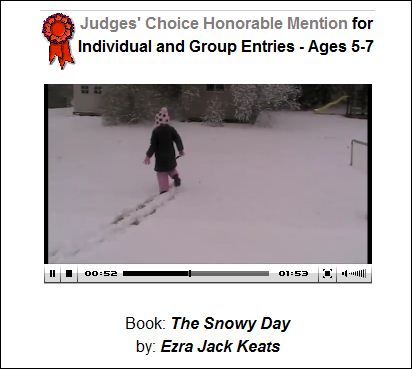
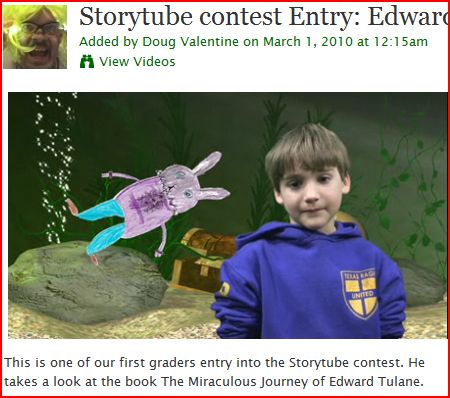
Take the time to view two of my personal  favorites in the 5-7 year old category.  The first features “A Snowy Day” by Ezra Jack Keats and the second features “ The Story of Edward Tulane” by Kate DiCamillo.   In “A Snowy Day’, a young girl is videotaped as she introduces the story, falls asleep to enter into the story world where she re-enacts key scenes from the book, and then wakes up to close with a message to read the book.  The Edward Tulane video is more complex in video production, involving a green screen, hand-drawn illustrations, and props.  Both are terrific!
StoryTube website

http://www.storytubes.info

http://storytubes.info/drupal/node/50

http://teacherlibrarian.ning.com/video/storytube-contest-entry-edward

Middle School Students at Veterans Park Academy post digital book trailers to their school blog

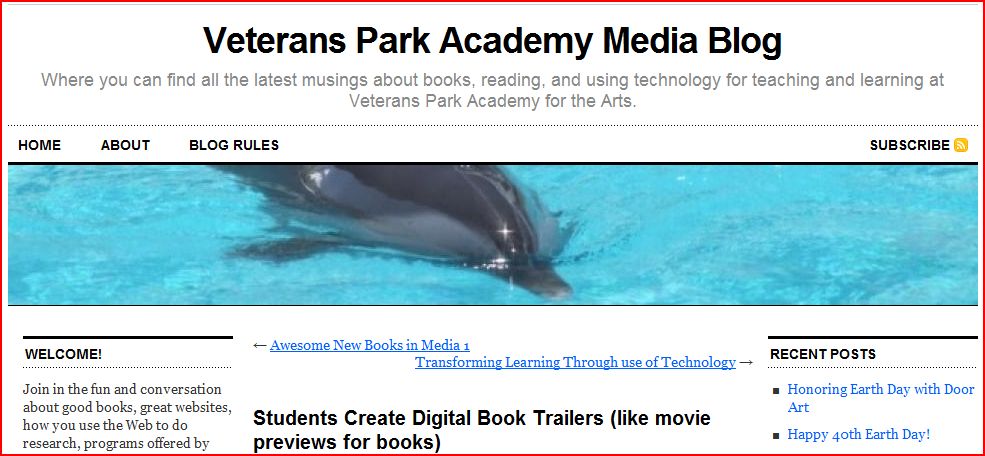
Book trailers are ideal for middle grade children who have seen and enjoyed many movie trailers and are eager to merge this with the book advertisement.  Check out the digital book trailers created by Mrs. Hansen’s students using Photo Story 3. While there is no live video,  Rachel’s book trailer for “Rules ” by Cynthia Lord shows how images, sound track, and text can work together to pique your curiosity and make you want to read the book “to find out what happens…”

http://vpaamedia.edublogs.org/2009/01/20/students-create-digital-book-trailers-like-movie-previews-for-books/

The Digital Book Talk Center 

The Digital Book Talk Center’s motto is “ Creating a community of avid readers, one video at a time”.  Led by Dr. Robert Kenny of Florida Gulf Coast University and Dr. Glenda Gunter of the University of Central Florida, this award-winning site offers 113 digital book talks (with more coming from K-12 and university students).  There is an array of book trailers that will appeal to adolescent learners, either as an enticement to read a new book, or as an introduction to a book they have already selected to read.  You may also  download the U-B_the_Director curriculum, and view other instructional resources, such as the “how to make a book trailer” video. http://www.ehow.com/how_4491963_make-book-trailer.html

 http://digitalbooktalk.com 

Everybody is doing it, even teachers and librarians!

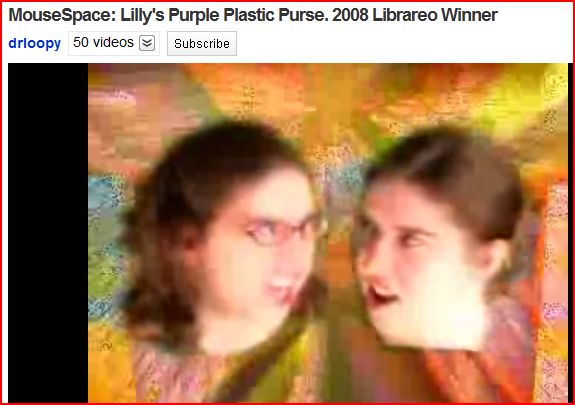
I can’t end this post without calling your attention to a very entertaining book trailer, MouseSpace:  Lilly’s Purple Plastic Purse, 2008 Librareo Winner

I laugh every time I watch this video about a teacher who runs into the library moments before the bell rings for class to find the book that she absolutely MUST HAVE for her lesson.  Unfortunately, she can only remember that it has something to do with a mouse.  See how many titles you recognize as this knowledgeable librarian runs through a multitude of ‘mouse-related’ book titles!

http://www.youtube.com/watch?v=ZM3Ws0W86r4

And, that’s a wrap, folks!