Curating Videos on the Web for Children

By Thomas DeVere Wolsey

Sometimes, searching for and selecting the best content online can take as much time as actually watching, reading, or engaging with the content itself. This is especially true for parents and teachers who often make the selections for children.  This is so for text and image-based digital content but also for video.  Youtube EDU provides some guidance for teachers and parents.  In this LiteracyBeat post, I will tell you a little bit about a new service that curates video content from a variety of sources and for specific audiences: Pluto TV

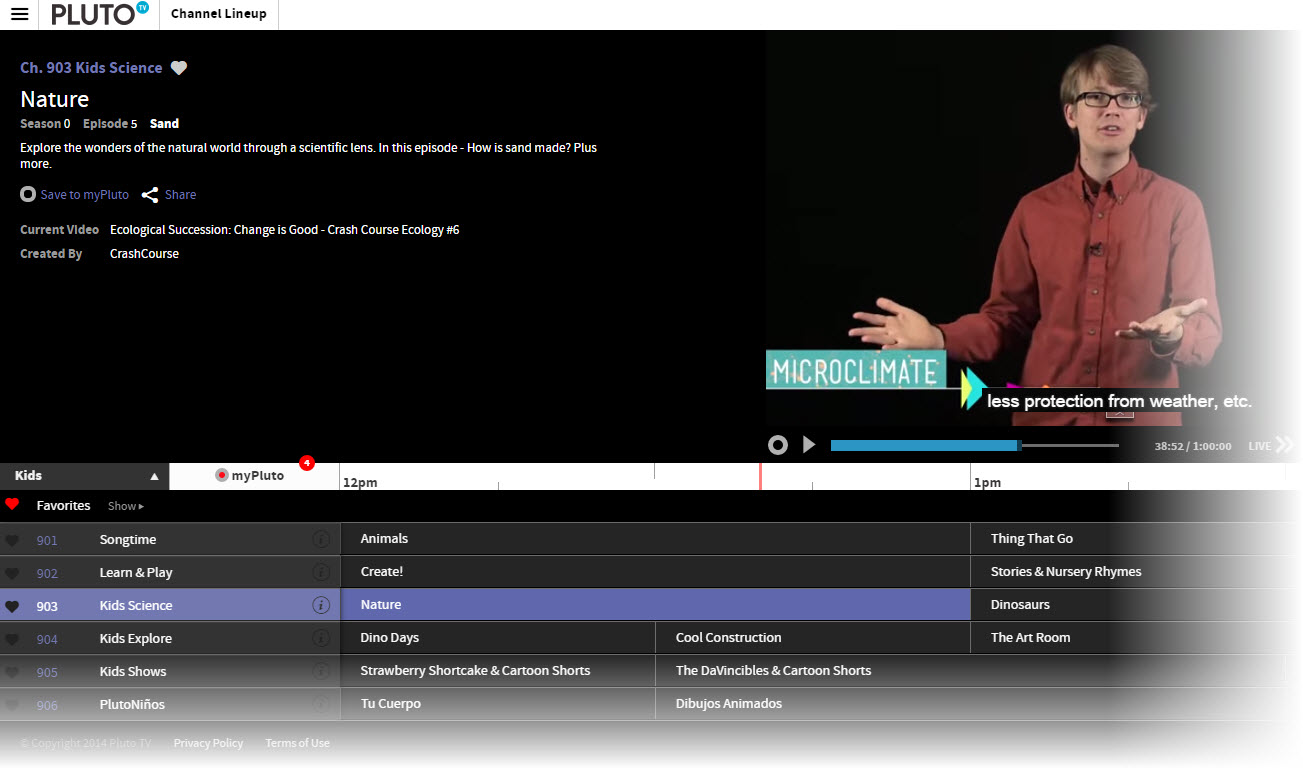
Where YouTube EDU uses an electronic discovery system to identify content, Pluto TV employs about 15 human beings who search for and curate videos. For parents, teachers, and children, the curation process is particularly important because each of the children’s channels (currently channels 901-906, click the “Channel Lineup” button on the top left) on Pluto are aimed at a different demographic, a very important feature that differs from television channels that may air content for preschool children in the morning and elementary-age children in the afternoon. Moreover, the curated content filters out shows on popular channels that don’t always deliver the educational or useful content parents expect. There is also a Kid’s Mode with a parent lock feature.  Shows can be saved for future viewing or a reminder sent that a show is about to air.

Pluto Screencap

Pluto TV screenshot – Kid’s Channel Lineup

The interface is a familiar one that looks like the channel line-up on your television service provider.  Each show plays at a specific time and it is possible to save a show or set up a reminder to watch it later. Of course, Pluto is well-designed to work on multiple devices and there is an app to improve the experience, as well.  Learn more about Pluto here.

Read more in the Los Angeles Times.

Literacy Instruction in a Brave New World: A themed issue from Kappan

Phi Delta Kappan has just published a themed issue on “Literacy Instruction in a Brave New World” (November, 2014, volume 96, No. 3). For a short time period, you may view and download all of the articles online, for free.

http://pdk.sagepub.com/content/current

magazine cover shows child reading on a tablet

Literacy Instruction in a Brave New World

As literacy and technology expert Mike McKenna states in the opening to his article,

“Technology integration into language arts instruction has been slow and tentative, even as information technologies have evolved with frightening speed. Today’s teachers need to be aware of several extant and unchanging realities: Technology is now indispensable to literacy development; reading with technology requires new skills and strategies; technology can support struggling students; technology can transform writing; technology offers a means of motivating students; and waiting for research is a losing strategy.”

We have a lot to learn, a lot to accomplish, and we need to pick up the pace! I found this issue both practically valuable and thought provoking.

Please go to the Kappan website http://pdk.sagepub.com/ and search for the current November 2014 issue, or click on  http://pdk.sagepub.com/content/current to go directly to the table of contents. I’ve listed the table of contents below (note that Jill has a piece on online inquiry and I have a piece on eText and eBooks). Enjoy!

Literacy Instruction in a Brave New World – Table of Contents

Michael C. McKenna, Literacy instruction in the brave new world of technology

Joan Richardson, Maryanne Wolf: Balance technology and deep reading to create biliterate children

Christopher Harris, Fact or fiction? Libraries can thrive in the Digital Age

Samina Hadi-Tabassum, Can computers make the grade in writing exams?

Melody Zoch, Brooke Langston-DeMott, and Melissa Adams-Budde, Creating digital authors

Bridget Dalton, E-text and e-books are changing literacy landscape

Diane Carver Sekeres, Julie Coiro, Jill Castek, and Lizabeth A. Guzniczak. Wondering + online inquiry = learning

Gail Lynn Goldberg, One thousand words, plus a few more, is just right

Kristin Conradi, Tapping technology’s potential to motivate readers

Multimedia digital books: Forward Thinking

Teaching the Language Arts: Forward Thinking in Today’s Classrooms by Elizabeth Dobler, Denise Johnson and Thomas DeVere Wolsey. Published by Holcomb Hathaway, ebook available via Inkling platform.

forward thinking

  When I received a copy of Forward Thinking I was immediately struck by the calibre of the authors (Elizabeth Dobler, Denise Johnson and our own Literacy Beat blogger De Vere Wolsey). In turn, each author is well respected within the literacy community for situating their research in classrooms and making strong research-to-practice connections. The six modes of the Language Arts- reading, writing, listening, speaking, viewing and visually representing provide the organisational framework of this etext. However, it is the enhanced etext publishing format which I want to particularly draw attention to in this post.

A number of distinctive features encourage active learning environments by combining traditional and electronic content. These features allow the reader to transact with the text in multiple ways through media elements such as, video, graphics, and audio which are embedded in the etext. Readers can watch lessons being taught in real classrooms; have instant access to multiple resource ideas that are shared through video clips (e.g. writing workshop); listen to podcasts of teachers and students; view graphics of work samples and follow hyperlinks to websites. In addition, links between research and practice are featured in interviews with scholars like Don Leu, Dorothy Strickland and Nell Duke. Finally, the etext incorporates a note sharing feature which could be used to create pathways to learning through listening, reading and viewing within a community of learners.

The authors of Forward Thinking note that the book models ways in which electronic resources can be integrated with and used to augment traditional classroom instruction. Forward Thinking  allows us  envision the possibilities when technology is integrated in meaningful ways to enhance literacy and learning in the 21st century classroom.

Mom’s Recipe Box, Old Lesson Plan Folders, and My iPad

By Thomas DeVere Wolsey

In an old file box for 4X6 index cards, my Mom kept favorite family recipes. Some of these cannot be found online because they were traded among her friends and relatives long before Pinterest or Facebook made it possible to share a recipe link online.  I wanted to share copies of these with my brother and sisters, but making copies on paper seemed the wrong way to go.  By layering applications, I found I could recreate those 4X6 index cards, make many of them searchable, and share them with family and friends.  I used Evernote and Scanner Pro along with tags that corresponded with Mom’s original index card system (each letter represented a category of recipe, such as “cookies” and I could also add tags for recipes by season or author). Using these apps was far more efficient than using the traditional flatbed scanner in this instance.

Mom's recipe box

Mom’s recipe box

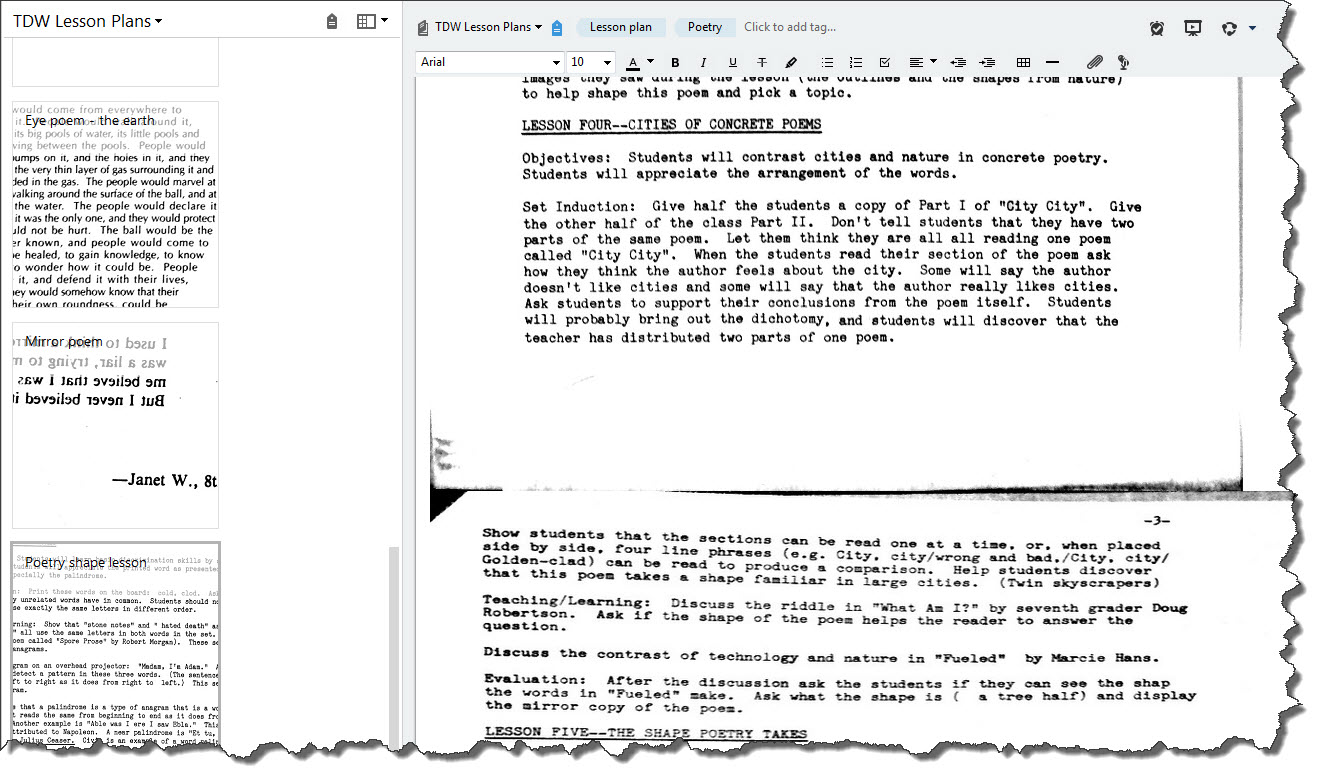
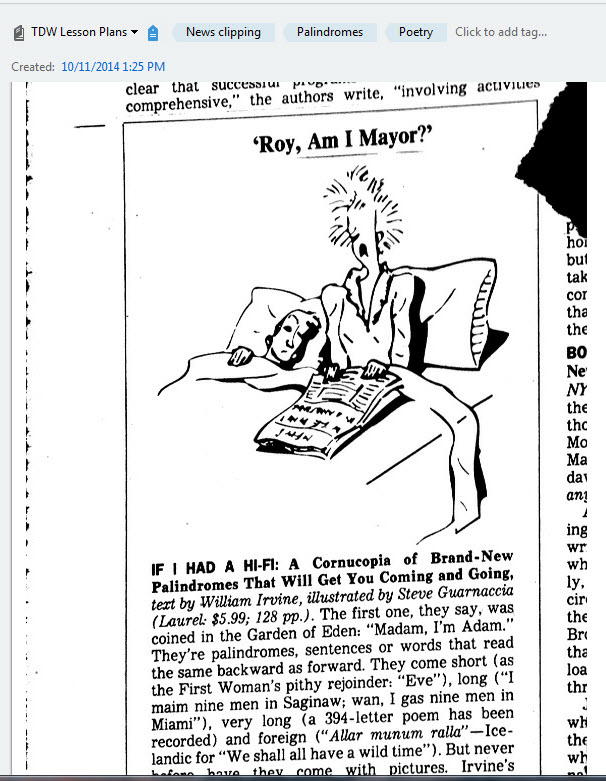
There are many tools for archiving and sharing recipes (click here for one example)  from file boxes, but I also wanted to archive and share the many file  folders full of lesson plans and resources, such as student work samples, that I collected over the years. The same tools I used to store and share Mom’s recipe box worked well here. My manila file folders full of news clippings, handwritten notes, typed lesson plans, and student work samples could easily be converted to a notebook in Evernote. I added tags that roughly matched the file folder label and additional tags for “student work sample” or “lesson plan.”

Eye poem lesson plan

News Clipping

News Clipping via Scanner Pro and Evernote

Some of the items in the folders would fit well in my flatbed scanner with a multisheet feeder. But notes and news clippings might not. Some of the pages were so old I thought they might jam the sheet feeder. My iPad solved this problem along with a scanner app (I used Scanner Pro by Readdle, but there are others). The scanner app uses the camera in the iPad or iPhone to create a scan of whatever paper you have and save it in image format (such as .jpg) or as a PDF file.  I usually choose the PDF format.

Scanner Pro can be easily linked to Evernote so that scans are automatically sent to Evernote.  In Evernote, you can annotate the file with new notes, tag the note, and share the note or the notebook with others. Be sure you consider copyright and fair use guidelines, of course, when sharing the work of others.

An eye  poem by Mario (Mariachi)

An eye poem by Mario (Mariachi)

Evernote has a free and a paid or premium version. The free version will work for many teachers, but if you want to upload many files, a paid version may be a better option; fortunately, the paid versions are reasonably priced. I paid $2.99 for Scanner Pro, an investment well worth the price. Scanner Pro allows me to sync automatically to Evernote and other applications. With it, I can adjust borders easily on the rare occasions when the software doesn’t quite capture the edges of whatever sized document I am scanning.

Resources:

Evernote Also be sure to check out Bernadette’s post, here.

Scanner Pro by Readdle

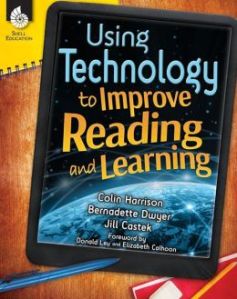
Using Technology to Improve Reading and Learning

Book  cover of Using Technology to Improve Reading and Learning

When friends write a book, of course, you’re excited for them and can’t wait to read it.  What’s even more wonderful is when you read the book and it’s terrific – one that you know you will use in your own teaching. Using Technology to Improve Reading and Learning by Colin Harrison and fellow Literacy Beat bloggers Bernadette Dwyer and Jill Castek is just such a book.

I found this book to be exceptionally useful for many reasons, but I will highlight just two of those reasons here.

First, Colin, Bernadette, and Jill are not only experts in technology and new media; they are first and foremost experts in literacy instruction. They have taught children how to become engaged and successful readers and writers, and they have taught and collaborated with teachers on effective literacy instruction and technology over many years. Their deep knowledge and on-the-ground experiences with children and teachers is demonstrated in every chapter. They speak directly to teachers, acknowledging the realities of today’s schools and the pressure to achieve high academic standards with all students, while offering a vision and concrete classroom examples to inspire us to embrace the challenge.

Second, this book provides a comprehensive blueprint for integrating technology so that children are more successful with print-based reading and writing AND are developing the new literacies of reading, learning, and communicating with eBooks and on the Internet. Bernadette, Jill and Colin complement a chapter on reading eBooks and digital text with two chapters on Internet inquiry – one focusing on the search process and the other focusing on how to compose and communicate through multimodal products. These are areas where we need to make tremendous progress if we are going to prepare our students for a future world that will be more multimodal, more networked, and more dependent on individuals who are creative, strategic, and collaborative.

I’ve copied the table of contents below. You will see that this book offers teachers multiple pathways for moving forward on their own journeys of technology and literacy integration. Enjoy (I know I will)!

Table of Contents

  1. Using technology to make the teaching of literacy more exciting
  2. Strategies for capitalizing on what students already know
  3. Strategies for using digital tools to support literacy development
  4. Strategies for using eReaders and digital books to expand the reading experience
  5. Strategies for teaching the information-seeking cycle: The process stage of searching for information on the Internet
  6. Strategies for teaching the information-seeking cycle: The product stage of searching for information on the Internet
  7. Strategies for encouraging peer collaboration and cooperative learning
  8. Strategies for building communities of writers
  9. Strategies for building teachers’ capacity to make the most of new technologies

Textisms: Violating Ye Olde Grammar Rules

By Thomas DeVere Wolsey

Are textisms ruining students’ capacity for using standard English? Textisms, J2LYK, are those abbreviations and other shortcuts kids and many adults use when writing in some digital formats such as short message systems (SMS- an abbreviation for short message system referring to those messages sent via wireless communication devices, usually a cell phone) or when using social media such as Twitter. Many people seem to think so.  However, the evidence is growing that this is not the case.

Sketch Texting

Sketch Texting by Guillaume Perreault (CC BY-NC-ND 2.0)

Children, as they grow, are quite adept at understanding the contexts for different registers of language. If they are taught when a given register is appropriate and when it may not be, their ability to adapt to the context seems to increase (see Townsend & Lapp, 2010). Moreover, affinity groups often develop jargon that is unique or understood only by participants in that group. For example, those who participate in online discussions on Facebook or using SMS and are interested in horses, understand that “UD” is a textism for “unplanned dismount” (Cloud 9 Ranch, 2012). You can guess what happened to the rider. Online gamers have textism all their own, as well. Many other textisms are very familiar to wide audiences. LOL, OMG, ROFL–all good examples of those that many people recognize. Of course, textisms are mediated by the technology used to create and transmit the message, as well. The 140 character Tweet is an example demonstrating that a limited number of characters imposed by the technology might encourage use of emoticons, abbreviations, and so on.

A 2009 study (Plester, Wood, & Joshi) found no correlation, or relationship, between students’ use of textisms and their capacity to use traditional spellings and language features. A new study (Wood, Kemp, & Waldron, 2014) examines the  long-term results when children and young adults use textisms, especially as those textisms relate to purposeful violations of grammatical conventions as opposed to errors. The results demonstrated that the subjects in the study showed no negative correlations between their abilities to use conventional grammar appropriate to their ages and their use of textisms. The study seems to suggest that use of textisms means that students are adding a literacy skill to their repertoire rather than replacing one skill set with another.

References:

Cloud 9 Ranch. (2012). How many of these textisms do you use? [Facebook post]. Retrieved from https://www.facebook.com/permalink.php?story_fbid=235772239879305&id=222644657746917

Plester, B., Wood, C., & Joshi, P. (2009). Exploring the relationship between children’s knowledge of text message abbreviations and school literacy outcomes. British Journal of Developmental Psychology, 27(1), 145-161. doi: 10.1348/026151008X320507

Townsend, D. R. & Lapp. D. (2010). Academic language, discourse communities, and technology: Building students’ linguistic resources. Teacher Education Quarterly, Special Online Edition. Retrieved from http://teqjournal.org/townsend_lapp.html

Wood, C., Kemp, N., & Waldron, S. (2014). Exploring the longitudinal relationships between the use of grammar in text messaging and performance on grammatical tasks. British Journal of Developmental Psychology. Early online release. Retrieved from http://onlinelibrary.wiley.com/doi/10.1111/bjdp.12049/full doi: 10.1111/bjdp.12049

Image Credit:

Perreault, G. (2010, December 5). Sketch texting [drawing]. Retrieved from https://www.flickr.com/photos/guillaumeperreault/

Read more:

Texting Benefits for Teens
IM, SMS, Texting: A Glossary for Teachers
Spell Check and Writing Tasks in High School

Project Planning, the Common Core, and Technology, Too

by Thomas DeVere Wolsey

Digital Project Management Tools bring College and Career Skills Right into the Classroom

This weekend, one of my projects is to renovate the garden and put in spring vegetables. It’s up to me and my favorite nursery. All I have to do is motor on down to the garden center, buy what I need, and plant the seeds and seedlings. Other projects take a bit more planning, and digital tools can be a big help. Students often have a great number of projects in progress, and many of those involve collaborative work. Students work with students, with their parents, and sometimes members of the community. Teachers orchestrate much of the project management aspects, quite often. But, what if students could take on some of the College and Career Readiness Standards and learn how to manage their own projects?

Here are some of the College and Career Readiness Anchor Standards that require collaboration.

CCSS.ELA-Literacy.CCRA.SL.1 Prepare for and participate effectively in a range of conversations and collaborations with diverse partners, building on others’ ideas and expressing their own clearly and persuasively.

CCSS.ELA-Literacy.CCRA.SL.6 Adapt speech to a variety of contexts and communicative tasks, demonstrating command of formal English when indicated or appropriate.

The Common Core State Standards in English-language arts/literacy emphasize the need, for the first time, for students to work together in a variety of settings and contexts and to use their literacy skills to get the job done. Assigning, selecting, or choosing a project is the first step. Managing the project so that work that is planned is actually carried out is where technology comes into play. Class projects last from a day to several weeks, and they range from preparing presentations to the class, making a digital demonstration of knowledge, or engaging in various service-oriented activities.

A project management tool that has been around for more than a century is named after the man who created it, Henry Gantt (cf. Clark, 1923). The Gantt chart has been used in the military, in manufacturing industries, live sports events (think Final Four) and in long range planning just about everywhere—including schools. Gantt charts are useful because they graphically show, “Work planned and work done are shown in the same space in relation to each other and in their relation to time” (p. v). Their visual nature encourages student project participants to develop a plan, stick to it, and note their progress over time. Digital tools improve Gantt charts by automating some tasks, making them easily available to project participants at any time, and being infinitely expandable. The use of color further improves the appeal and utility of the organizer.

Gantt project management organizers can be created with sticky notes on a white board or wall (Click here to see one example), on butcher paper, or with an 11 X 17 piece of construction paper. However, technology can greatly simplify the task. Typically, they show the tasks to be accomplished, who is responsible for each task, and a timeline showing planned and completed tasks. Excel® spreadsheets offer one digital solution to the Gantt chart that makes updating simple, and you’ll see that data entered in one part of the chart is translated visually.  Gantt charts can easily be created in a shared spreadsheet file such as those found in Google Docs, or with online apps specifically designed for this purpose (see figure 1), such as Smartsheet.

Smartsheet

Figure 1: Image courtesy of Smartsheet.

Online apps, such as Smartsheet, make it easy to share the chart on a class webpage, blog, or course management system. Parents can see it, students can edit and change it, and everyone will know who has to do what in order to get the job done and done well. Read more about project management tools for the classroom in this interview with Jodi Sorensen of Smartsheet. The company provides a free student project sheet for teachers to get started–log in and play around; it’s fun. There’s also a free teacher syllabus sheet. All those binders of curricular materials may be a thing of the past. One feature of Smartsheet I liked is the capability of linking other files (pictures, documents, and so on) right to the project organizer. See how this is done in this video on YouTube starting at time 0.36.

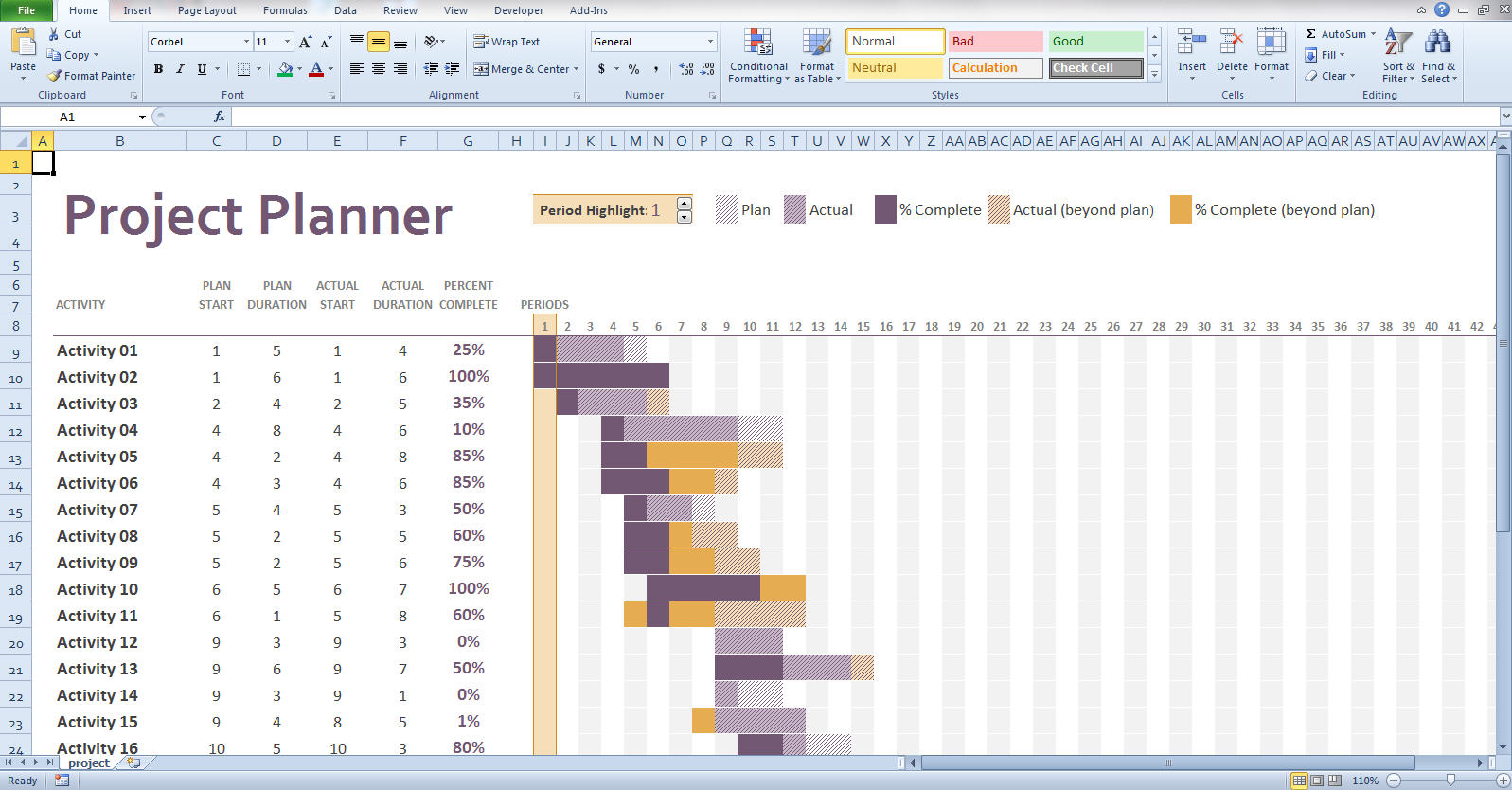
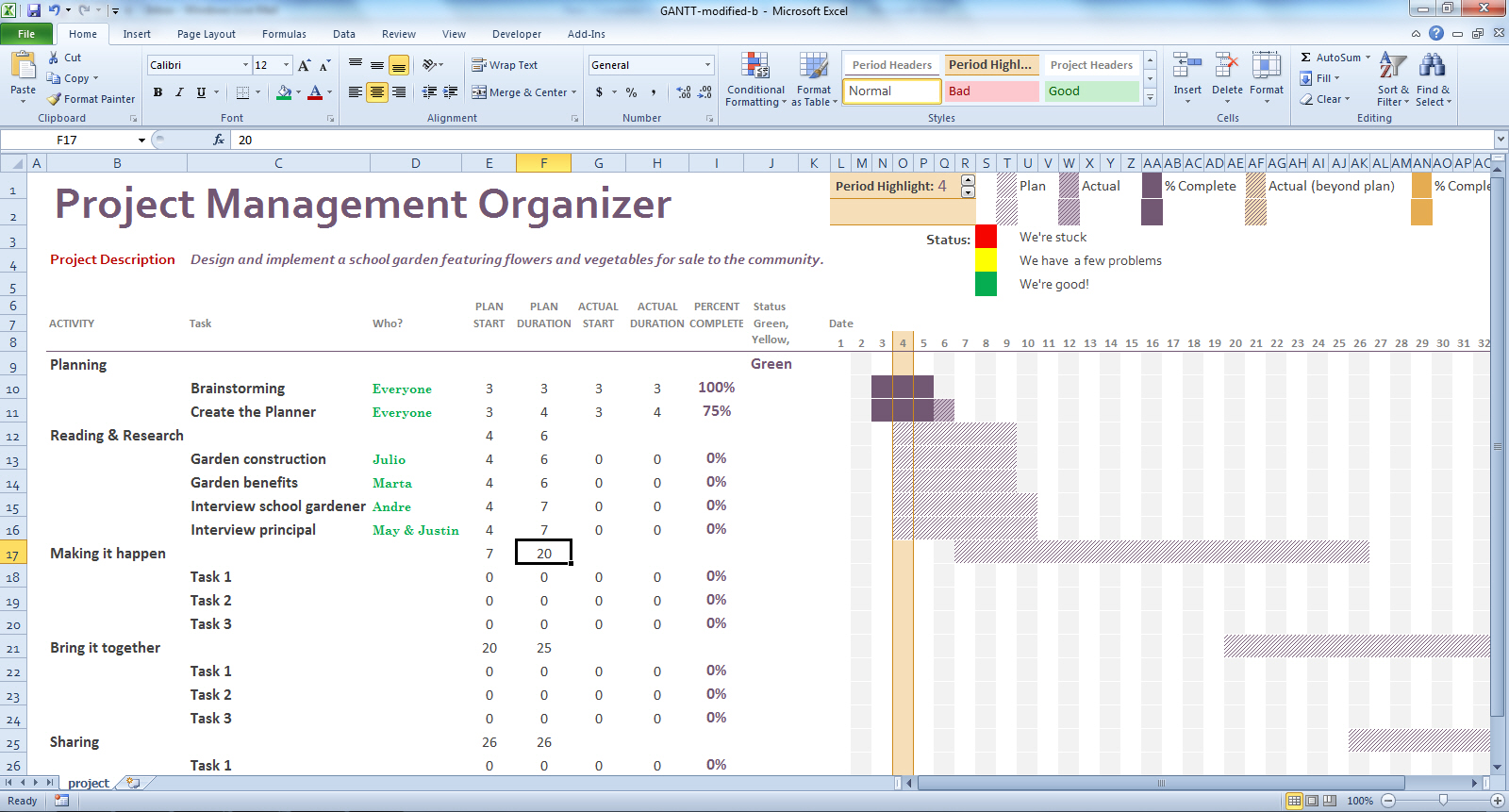
If you choose to use Excel or other spreadsheet software, you might find that templates for Gantt project management organizers are helpful because the setup is already done. In figure 2 you can see a basic template from Microsoft downloads, found here. Figure 3 shows a modified Gantt Project Management Organizer using Excel for use in upper-elementary and secondary grade classrooms, and you may download this template if you want to try it out.

Excel Gantt Chart

Figure 2: Generic Excel Gantt chart

Excel for School

Figure 3: An Excel Gantt chart modified for school projects.

Both of these organizers allow students to quickly enter data about what they plan to do, how much they have accomplished, and how they are proceeding. The neat thing is that Excel and other spreadsheets or software automatically create the timeline showing what is planned, and what is actually accomplished. These examples show a start date for the first of the month, but teachers can create their own templates just by deleting columns for dates that don’t match the timelines for completion.

Choose the digital tool you plan to use (e.g., Smartsheet, Excel). Next, train a few students, perhaps one from each project group or team, to be the expert on using the project management technology. The teacher should not be the only resource for using the tool.

Help students define the major parts of the task. In the example in figures 1 and 3- above, the teacher defined large categories as

1. Planning, Reading and research,, making it happen, etc.

or

2. Research, interviewing, and so on.

At first, students will need help breaking down the specific tasks for each category. A model the teacher creates or from past student project will be helpful in guiding students to decide just what the specific tasks might be.

Start the project!

In schools and at the university, we often engage students in projects of all kinds. However, students need to know more than what the project is and what its goals or objectives are. They also need the 21st century skills to manage large projects that will help them succeed in their schooling and in their careers.  Have you tried using digital project management tools, or even a traditional paper-based Gantt chart? If so, tell us about it by posting a comment.

Reference:

Clark, W. (1922) The Gantt chart: A working tool of management. New York, NY:  Ronald Press. Retrieved from https://archive.org/details/ganttchartworkin00claruoft

Read more on this topic at the International Reading Association website. (added 3-29-2014)

Apps a Plenty, Apps Galore! Starting on an iPad App Adventure

I’m on the literacy faculty at the University of Colorado-Boulder.  Although I try to integrate technology into my teaching in thoughtful and creative ways, I don’t always succeed.  Typically, it’s due to lack of time, or the right hardware or software access, or the right know-how!  This month, the School of Education received a generous gift of 30 iPads to use in our Literacy Classroom.  My immediate reaction:  What a fabulous opportunity to explore how the undergraduate reading methods class and I will use this gift over the remainder of the semester.  So, in that spirit, my next few posts will focus on how it’s going, what I’m learning, and what I wish I never had to learn!

A General Web Resource on Teaching with iPads

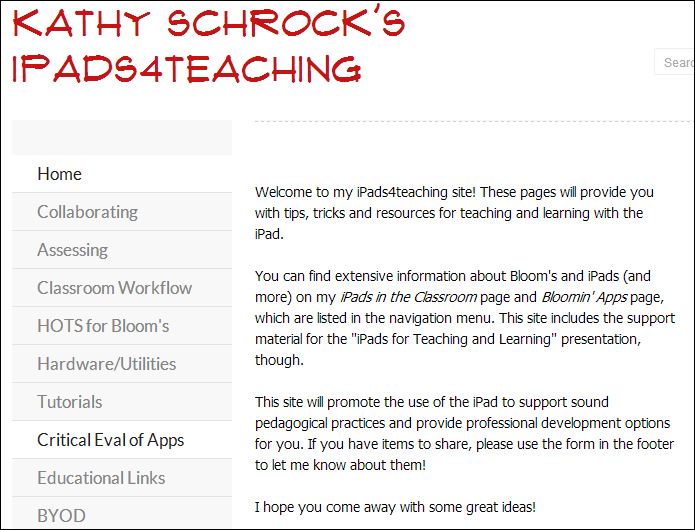
Way back when (yes, all the way back to the 1990’s), I used to consult Kathy Schrock’s website when I had a technology question.  I was delighted to find that she has a special website dedicated to all things iPad related!  Whether you’re a beginner or novice user of iPads, there are things to learn from Kathy and the many educators who contribute resources and teaching strategies to this site.

http://www.ipads4teaching.net/

screenshot of Kathy Schrock's website on teaching with iPads

iPad Posts from Dana Grisham

And, for those of you working with young children, visit the recent posts from Dana Grisham about developing emergent literacy with iPad apps.

  • Recommended pre-school apps for literacy learning

https://literacybeat.com/2014/02/27/recommended-preschool-apps-for-literacy-learning/

  •  Goodnight, iPad!

https://literacybeat.com/2013/09/18/goodnight-ipad/

Essential Apps for our CU- Boulder Literacy Classroom

As soon as we got word that we were going to be receiving the iPads, I immediately began to think about “essential apps”.  Our budget was limited, so I knew I needed to be strategic in what we purchased (in a later post I’ll focus on free apps).

#1:  A Drawing App

To begin, I knew I wanted a drawing program to support multimodal composition. I knew that we would be able to use it for responding to literature with color, drawing, photos, and images remixes, as well as creating illustrations for the students’ original picture books and trying out the  ‘sketch to stretch’ reading comprehension strategy. I also wanted the drawing program to be one that could be used in elementary schools, since my goal was that the CU future teachers would first compose with the drawing tool themselves, and then apply it to teaching children.  After reviewing multiple programs and getting advice from teachers in our masters’ program, I selected Drawing Pad ($1.99).   It’s simple and intuitive, yet allows you to create some pretty amazing images fairly quickly!

Drawing Pad ($1.99)

https://itunes.apple.com/us/app/drawing-pad/id358207332?mt=8

Drawing Pad App logo

screenshot of Drawing Pad tools

#2:  A Book Creator App

My  second priority was to purchase Book Creator, another composing App that packs a lot of communication potential into a simple, yet powerful tool.   I knew my good friend and colleague, Debby Rowe from Vanderbilt University, was successfully using Book Creator with pre-school and kindergarten children.  Further, some Colorado elementary school teachers in our masters program tried it out in their classrooms last semester and gave it a favorable rating.  Based on these positive reviews and my own experimentation with a free version, I decided that Book Creator would be a good match for our needs.   It was more expensive — $4.99 – but it seemed worth it not to experience glitches that sometimes occur with a free version.

Book Creator ($4.99)

https://itunes.apple.com/us/app/book-creator-for-ipad/id442378070?mt=8

Book Creator logo

screen shot of Book Creator composing tool

Taking That First Step

So, with 30 iPads and two essential Apps, I am ready to begin the adventure of Ipad and App integration into my reading methods course.  I’ll let you know how it’s going next month.  I should warn you that I am a PC person.  I love my Apple smart phone, but am not nearly as fluent working on a MAC or an IPad as I am on a PC.  So, the learning curve will be steep and I’m feeling some anxiety about the process.  Ready, set, go!

If you have advice, suggested Apps, please post a response.  I thank you in advance,  Bridget.

Literacy Research Association Conference 2013

All five authors of this blog on literacy attended the Literacy Research Association’s 63rd Annual Conference in Dallas, Texas this past week. All of us are long time members of LRA, with my attendance dating back to 1992. This year’s conference theme was Transformative Literacy: Theory, Research, and Reform, a theme to which the five of us can really relate.

In our posts over the past three years, we have discussed many of these issues and contributed what we can to the discussion. The conference offered a broad spectrum of literacy research–from more traditional elements to the latest thinking in technology applications for literacy. The conference was amazing–the Omni Hotel is new, clean, elegant, and most important–FRIENDLY. There were numerous instances of kindness and care from the staff of the hotel that touched us–particularly as we all became somewhat “housebound” by the freezing weather front that swept down from the arctic.

When most of us arrived on Tuesday, December 3, the weather was a balmy 79 degrees Fahrenheit, but by Thursday, the temperature never rose higher than 27 degrees and by Friday, the high was 23 degrees with winds that exacerbated the cold. It was ironic to look out at the heaters on the outside patios and see icicles!  Contrast these two views  a view from the hotel. The first is Wednesday and a similar view on Thursday. Brrrr!

photo(1)

photo(2)

Inside, it was another story. This conference was put together with wonderful sessions–thanks to all the Area Chairs and Reviewers who selected the sessions and to all the presenters for their literacy research!

A highlight of the conference included a Presidential speech by Rick Beach of the University of Minnesota on the possibilities and affordances of online literacies. In addition, the speech was broadcast live to YouTube and links were provided during the speech so the audience could follow along. http://tinyurl.com/pgnbp2u Log in an take a look at a very valuable resource for online and multimodal composing! If you want to try Google Hangouts, go to Ian O’Byrne’s test flight at https://plus.google.com/u/0/111576401886299659895/posts/aKsxDawviHA?cfem=1 

The President’s Reception was held on Wednesday evening and the Literacy Beat bloggers were there. In addition, many of the people who work hard to make the conference a success, such as Board members and committee chairs were in attendance. Ian O’Byrne and Greg McVery, both essential to the new technologies for communication at LRA and Andrea Boling (Chair of the Technology Committee and e-Editor at LRA) at the President’s Reception on Wednesday evening.

kThree Tech

The next picture is of the five of us–Literacy Beat authors:  from the right, is Bernadette Dwyers, Bridget Dalton, Jill Castek, DeVere Wolsey, and yours truly. We always treasure the opportunities to interact in the same space and time (as we mostly always communicate from afar) and this conference was no exception. It should be noted that Bernadette is on the Board of the International Reading Association and that DeVere is the incoming LRA Publications Committee Chair. photo(4)

We all made presentations at the conference, caught up with our colleagues, and participated in various interests group throughout the conference.

Because of the freezing conditions, getting out of Dallas was somewhat challenging. One group of colleagues from Vanderbilt University, their flights cancelled, rented a car and drove home–a trip of 12 hours! Almost everyone experienced a delay, a cancellation, or a complete disaster. One colleague went to the airport in the middle of the night, put herself on the standby list and waiting almost 12 hours, eventually making it home.

For those of our readers who attend conferences, we’d like to encourage you to attend next year, if possible–on Marco Island in Florida, December 3-6, 2014. Hope we won’t have snow and hope to see you there!

Essential Reading

A post from Bernadette

ira_essentials_150

Articles on the International Reading Association (IRA) websiteIRA E-ssentials, provide a range of  “actionable teaching ideas”  on a growing range of literacy topics. These articles are provided free with your IRA membership on the members only section of the website. They are  also available to non–members for a cost of $ 4.99 per article once you create an account on reading.org. You can download these pdf articles to your computer or any portable reading platform for on-the-go reading access. What is really appealing about the E-ssential topic range is that they are written by well-respected authors in the in the field of literacy (including our own Literacy Beat blogger, DeVere Wolsey). These concise articles include further suggested readings on the topic and incorporate links to multimedia content including websites, blogs and videos. All are strongly situated in real classrooms with strong classroom exemplars. Connections to the Common Core State Standards in the US are also included. Topics  are wide ranging and so far include critical literacy, vocabulary development, visual literacy, assessment, text complexity, writing workshop, motivation and engagement, graphic novels, and adolescent  literacy. Here are some of my current favourites to whet your appetite:

Digital discussions: Using Web 2.0 tools to communicate, collaborate, and create -Brian Kissel, Karen Wood, Katie Stover, & Kim Heintschel.

In this article the authors explore how students can communicate through social media like Facebook and Twitter; how students can collaborate  with others in a global classroom through blogs and wikis; and how students can become creators and composers through VoiceThread and Audioboo.

I hadn’t thought of that: Guidelines for providing online feedback that motivates students to learn– Diane Lapp, with Thomas DeVere Wolsey & Patrick Ganz

Interactions in the classroom are no longer confined to face-to-face (FtF) discussions. In this article the authors provide insights into providing formative instructional feedback  using a range of digital tools that applies the strengths of FtF feedback, in terms of intent, tone, and format, in an online environment.

Critical Literacy With New Communication Technologies -Vivian Vasquez & Carol Felderman

In this article the authors explore components of critical literacy in the classroom including the relationship between language and power and the importance of inquiry-based questions stemming from the interests of children. With the introduction of digital technologies Freire’s notion of ‘reading the word and the world’ takes on new meaning in a  flattened world of global communities. The authors explore the  transformative power of digital technologies to develop critical literacies in the classroom.